Stripchat | Conclusion: you can watch it in the goggles' built-in browser. No dedicated app is needed
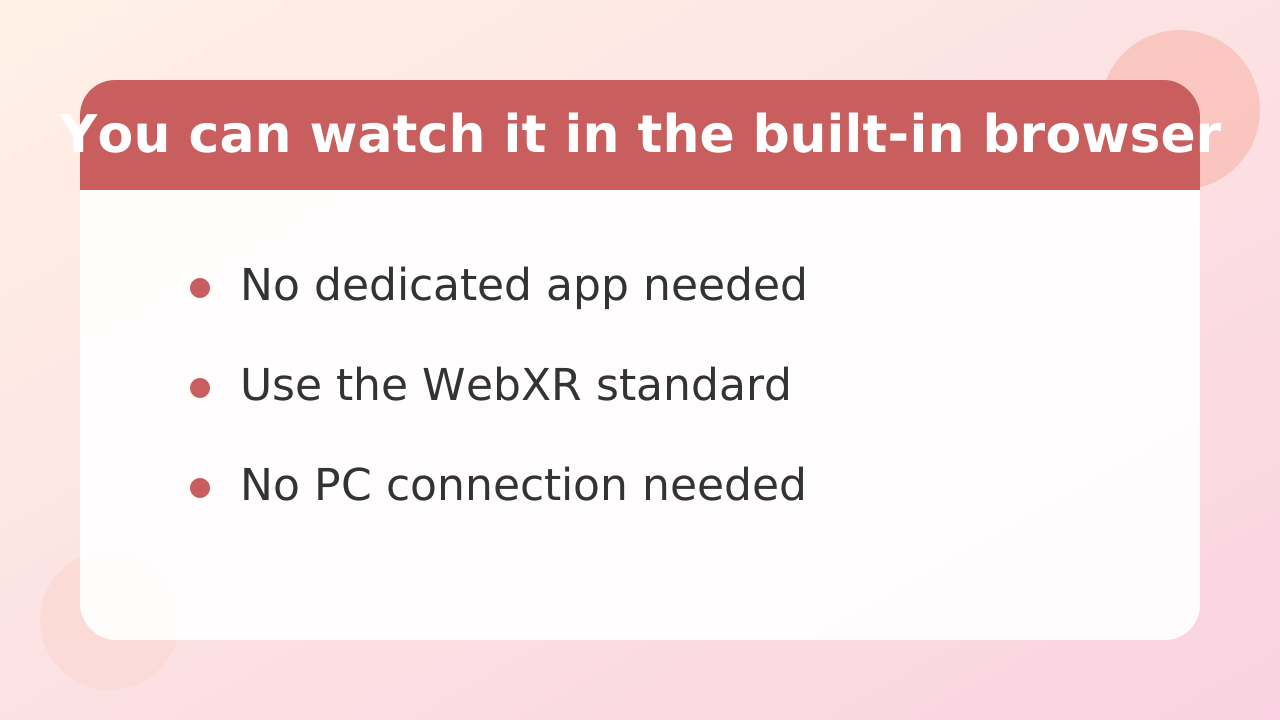
You do not need to download or install a dedicated app to watch VR broadcasts on Stripchat.
VR goggles such as Meta Quest come with a built-in standard browser. Just launch it and access it the same way as a normal Web site to view stereoscopic video.
This is because the universal standard called "WebXR" is used to render a VR space in the browser. Since you do not need to install unofficial apps or suspicious files inside the goggles, it is also safe from a security standpoint.
There is no need to connect to a computer: simply turn on the standalone headset and enter VR space immediately. A key feature is that it is easy to use without complicated initial settings or external software installation.
Stripchat | Check the list to see if your device can watch it (including why only PSVR2 can't).
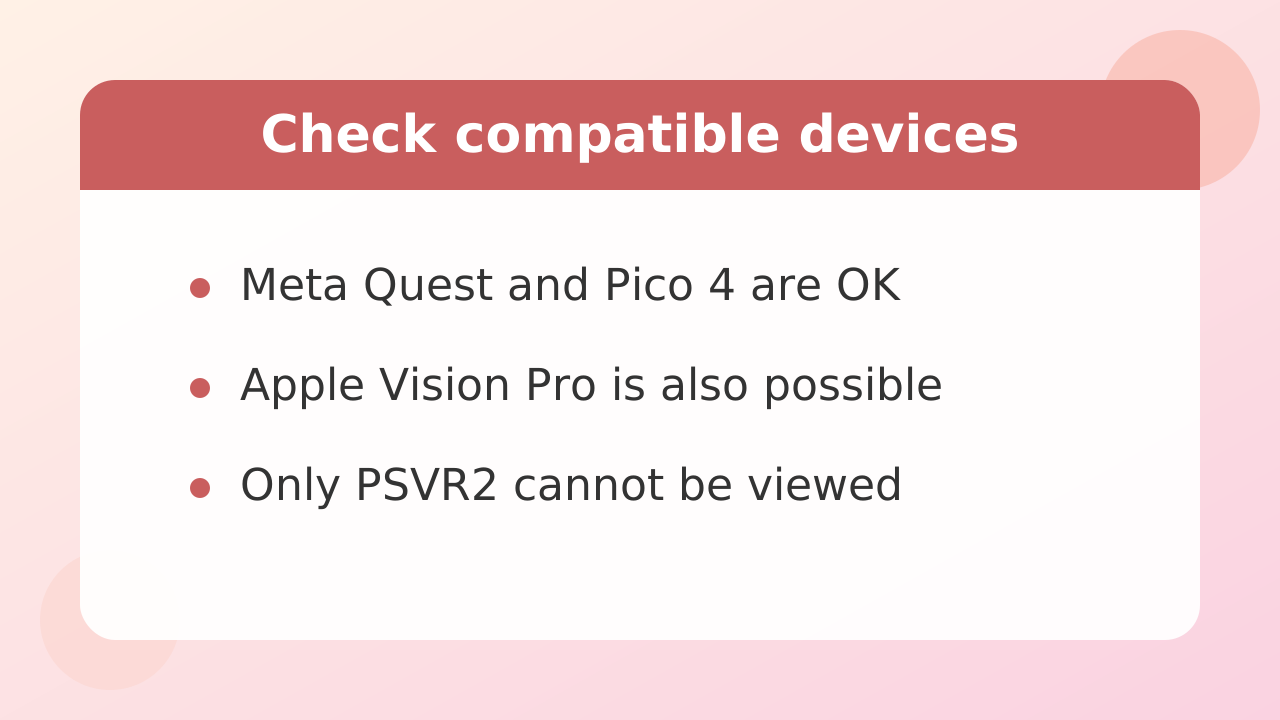
Whether you can watch with your VR headset depends on whether the device's browser supports the VR display standard (WebXR).
The compatibility of currently available major VR devices is as follows.
| Model name | Viewing availability | How to watch and features |
|---|---|---|
| Meta Quest 2 / 3 / 3S | Possible | Can be viewed as-is with the standard "Meta Quest browser." It is the easiest environment to handle with no PC required. |
| Apple Vision Pro | Possible | Can be viewed with the standard Safari browser. On a high-resolution display, you can use the WebXR feature. |
| Pico 4 / Pico 4 Ultra | Possible | You can access and watch directly from the built-in standard browser. It works standalone on its own. |
| Valve Index / HTC Vive | Possible | You can connect to PC and watch through a PC-compatible browser in a SteamVR environment with WebXR. |
| Smartphone + simple goggles | Possible | Switch to two-eye mode in the smartphone browser, attach it to a simple frame such as Cardboard, and watch. |
| PlayStation VR2(PSVR2) | Not possible | Because there is no VR browser compatible with WebXR in the PlayStation 5 system, it cannot be viewed on its own. |
While many standalone goggles support it, PlayStation VR2 alone is not supported.
It's not that PSVR2 itself lacks performance; the reason is that the Web browser function of the destination PlayStation 5 unit does not support the video output standard for VR spaces. Because it is a closed system dedicated to home game consoles, at present there is no way to play VR streaming via the Web browser.
If you are preparing goggles for VR viewing, the safest choice is the Meta Quest series, which works on its own without PC and has the most stable performance with the standard browser.
Stripchat | Steps to watch on Meta Quest (power -> browser -> VR icon)
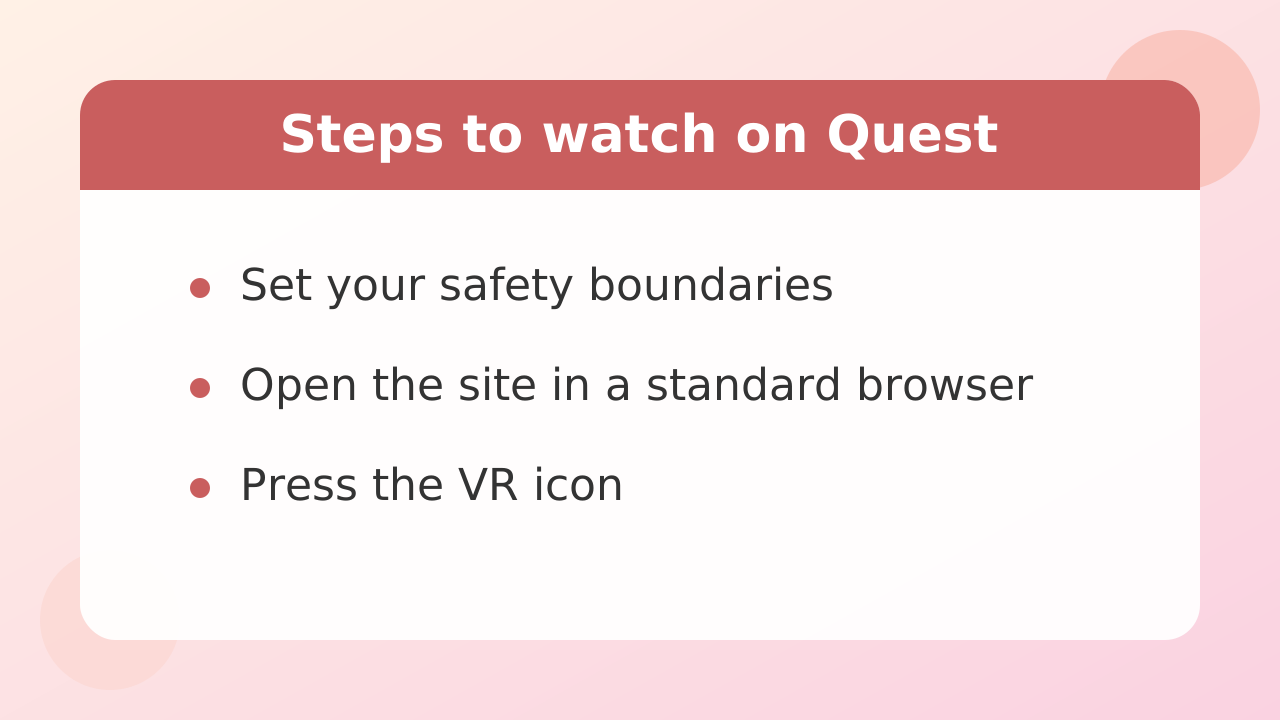
To watch a Stripchat VR show using Meta Quest, the process is complete in 3 steps: just open the browser and select the VR icon.
Step 1: Put on the headset and make sure your surroundings are safe
Press and hold the power button on Meta Quest to turn it on, then put the headset on your head. Follow the on-screen instructions to set up Guardian (the safety boundary) and make sure you have space so your body will not hit furniture or walls.
Step 2: Open the default "Browser" app and go to the site
From the menu bar on the home screen, select "Browser," shown with a blue globe icon. Enter the site address in the address bar at the top of the screen and search, then open the Stripchat top page.
Step 3: Select a VR stream and press the goggles icon on the screen
From the stream list, choose and enter the room of a performer showing the VR mark. Use the controller to point at and select the small VR goggles-shaped icon displayed near the bottom right of the video player.
The moment you select the icon, the browser frame disappears and your entire field of view switches to a 180-degree or 360-degree 3D space. Pulling the controller trigger lets you adjust the volume and show or hide the menu at any time.
Stripchat | 3 checks when it won't go into VR mode
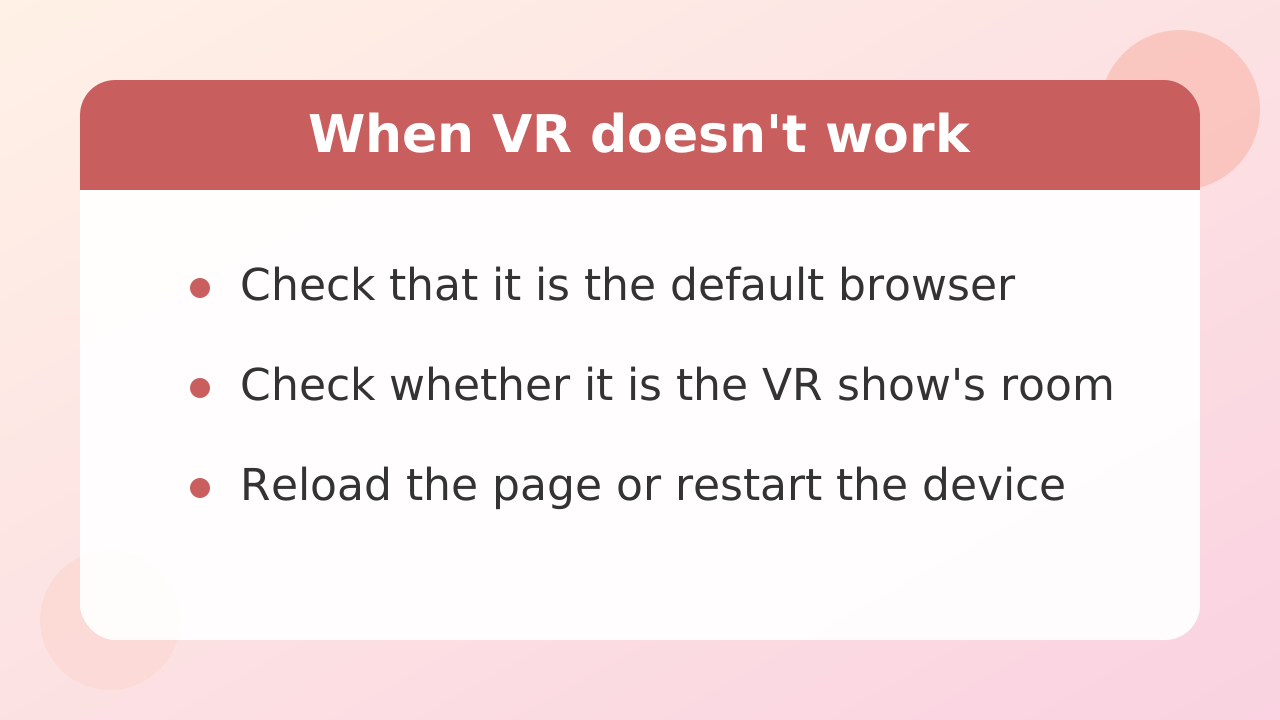
If the screen does not switch to 3D display, or the VR icon does not appear, check the 3 points: browser, stream room, and loading state.
Check 1: Are you using the standard stock browser?
If you are going through a third-party browser or external app within Meta Quest, the WebXR standard may not be called up correctly. Make sure you are using the "Meta Quest browser" that comes preinstalled on the device, not another browser added from the store.
Check 2: Is the room you have open a VR-only stream?
In rooms where the performer is streaming with a regular 2D camera, the VR switching icon does not appear in the player. Choose a stream whose thumbnail or room title has the "VR" badge.
Check 3: Is there a browser cache or temporary connection error?
If a brief connection interruption or similar issue prevents the page scripts from loading correctly, the icon may not appear. Reload the page by pressing the refresh button next to the browser's address bar, or close and reopen the browser tab. If that does not fix the problem, restarting the headset itself will often restore normal operation.
Stripchat | Pricing - VR's public shows are free. When do charges begin?
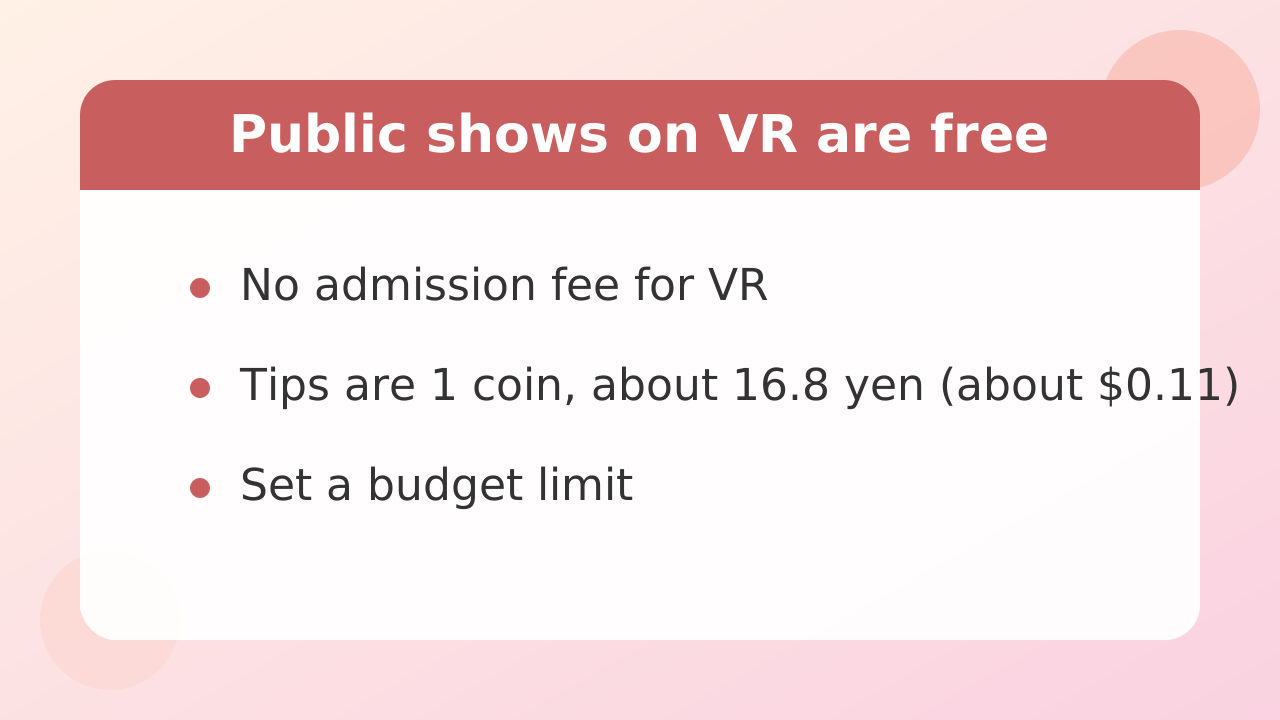
On Stripchat, VR broadcasts are completely free with no extra charge as long as they are public shows that anyone can enter.
Accessing VR through goggles does not display a monthly-fee billing screen or automatically deduct an admission fee dedicated to VR. As long as you have the equipment and an internet connection, you can enter the room for free just as you would on a regular computer or smartphone.
Money is involved on the site only when you request reactions from performers or use special show formats. Payments are made by buying the site currency, "coins." As a guide, coin prices for small pack purchases are about 16.8 yen (about $0.11) per coin.
- Tips (gift menu): A feature that lets you choose and send items such as "Greeting" or "Pose request" during a public show. You can send them easily for around 1 to several dozen coins.
- Group show: Multiple viewers pool coins and pay several to several dozen coins per 1 min (typical range 4-60 coins) to watch special content.
- Ticket show: A special show you enter by paying the amount set only when it is held (typical range 44-300 coins) 1 time.
- Private show: Pay several dozen to several hundred coins per 1 min (typical rate: 60 to 200 coins) to spend time alone with a performer for 2 people. It starts only when the performer accepts.
Once sent, tips are treated as gifts and cannot be refunded. When you become absorbed in the immersive realism of VR, it is easy to spend coins quickly, so we recommend setting a budget limit in advance, such as "up to 500 coins today."
Stripchat | How much connection speed do you need? (The first number to check when the video stutters)
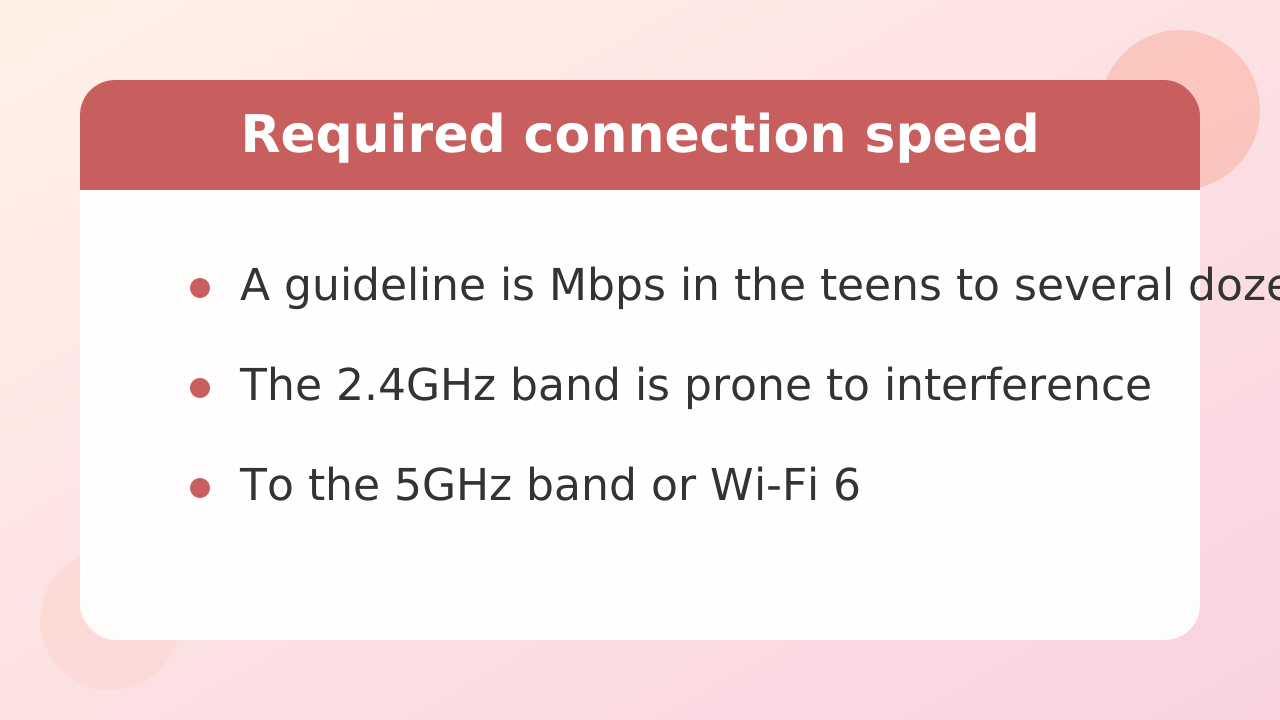
If VR video cuts out, becomes choppy, or freezes, suspect the actual speed and signal stability of the Wi-Fi connection you are currently using.
VR streams differ from ordinary flat video: they receive ultra-wide-angle, high-definition video data in real time and render it according to your gaze. For this reason, they must continuously exchange far more data than ordinary Web browsing or standard video streaming.
The site does not officially specify an exact minimum speed, but as a guideline for comfortably receiving typical high-definition video streaming, check whether you get a stable measured connection speed from the teens of Mbps to several tens of Mbps or more. You can measure your connection speed at any time by opening a speed test page such as Fast.com in the browser on your headset.
Also, not only the theoretical speed of your internet contract, but your in-home Wi-Fi environment has a big impact. If you connect to Wi-Fi on the 2.4GHz band, where radio waves are often crowded, frequent loading stops occur due to interference from nearby signals. Just checking your router settings and switching to the less crowded 5GHz band or Wi-Fi 6 connection can greatly improve playback smoothness.
The signal may also weaken if there are thick walls or metal obstacles between the room where the router is located and the room where you watch VR. If the video is unstable, try watching from a place with a clear line of sight to the router.
Stripchat | Are there VR Japanese performers? [Updated weekly using this site's automatic records]
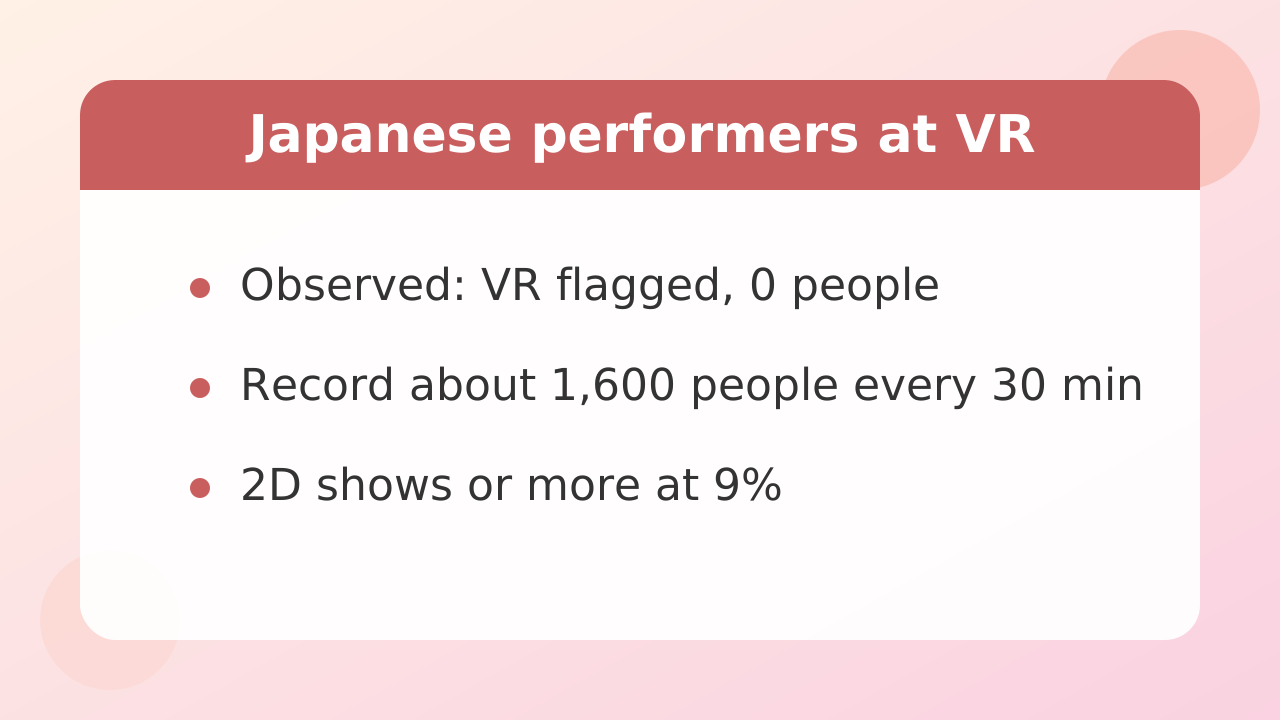
According to the fixed-point observation data collected by this site, there are currently almost no Japanese performers who regularly do VR streams on Stripchat.
This site automatically crawls and records Japanese performers' stream status every 30 minutes, but among about 1,600 performers being monitored, the result continues to be 0 Japanese performers flagged as supporting VR streams.
Among Japanese performers, regular 2D streaming using the built-in cameras of smartphones and notebook PC accounts for more than 9%. VR streaming requires a dedicated 180-degree 3D camera, high-performance streaming PC, and specialized lighting, making the barrier to entry extremely high for Japanese performers working independently.
Therefore, if you want to experience the immersion of VR on Stripchat, you will need to visit rooms run mainly by overseas performers from Europe and North America who have well-equipped setups.
You may worry that you can't enjoy it unless you speak English or another foreign language, but there's no need. The tip menu (gift list) has item names and required coin amounts arranged as buttons, so you can communicate with one click without typing words. Overseas performers also smile, wave, or call your name when you send tips, so you can enjoy the sense of closeness unique to VR without worrying about the language barrier.
Stripchat | How to try it on your smartphone before buying goggles
If you hesitate to immediately buy VR goggles costing tens to over a hundred thousand yen, you can try the experience by combining your smartphone with simple VR goggles.
Smartphone goggles made of cardboard or cheap plastic that meet the "Google Cardboard" standard are sold on online shopping sites for affordable prices ranging from a few hundred yen to around a thousand yen.
The process is very simple. First, open Stripchat in your smartphone browser and enter a VR-compatible room. Tap the settings or VR icon in the video player to switch the screen to a side-by-side 2-split stereoscopic view. Then place the smartphone in the front holder of a simple viewer and look through the lenses at the screen.
Because it works by magnifying the smartphone screen through a lens, compared with dedicated devices such as Meta Quest, pixelation is more noticeable, and it can't match dedicated devices in the smoothness of tracking when you turn your head or the naturalness of depth. However, it does enough to give you the basic experience of "what it feels like to have someone right in front of you in VR."
First, check the experience with a simple kit costing about one coin, and once you find the thrill of 3D video interesting, consider introducing full-scale dedicated equipment (such as Meta Quest 3S or Quest 3). This is the least failure-prone way to proceed.
Stripchat | VR-specific cautions (room lock, losing sight of your surroundings)
Wearing VR headset blocks your view of the real world and awareness of your surroundings, so make sure to secure privacy and safety in your viewing environment beforehand.
The most important thing to be careful of is a family member or housemate suddenly entering the room. VRWhile you are absorbed in the video, even if someone opens the door and comes near, they will not enter your field of view, and the sound from your headphones means you will not notice footsteps. Before you start watching, always close and lock the door to create a completely private space with no worry of being seen unexpectedly.
Also, the person wearing the VR headset may not notice, but they may unconsciously make sounds or move the hand holding the controller a lot. In rooms with thin walls, be considerate about sound leakage, keep headphone volume appropriate, and pay attention to your own speaking voice.
Creating a safe space to prevent injuries or damage to belongings is also essential. Even if you watch while seated, check that there are no cups of drinks or sharp objects within reach. Properly set up Meta Quest's Guardian feature (boundary settings), secure an area where you will not hit real furniture, and then enter the virtual world.
Be careful of "VR sickness" and eye strain caused by prolonged continuous use. 3D images put unusual strain on your brain and eyes as they adjust focus, so make a habit of removing the headset regularly after about 30 minutes and looking into the distance to rest your eyes.
Stripchat | FAQ
We have compiled common beginner questions about watching VR on Stripchat in a question-and-answer format.
Q. Can I watch VR shows without registering as a member?
Even without registering an account, you can access the site through a browser and watch the VR video of a public show. However, free user registration is required if you want to send tips to performers and enjoy their reactions or save your favorite performers.
Q. Will I be asked to verify my age when watching?
The response varies depending on the laws of the region you are using the service from, your access location, and the site's terms. Because this is a platform that provides adult content, you may see an age-verification consent button or be required to complete region-specific authentication. Follow the on-screen instructions carefully.
When I'm watching on Q. VR, can the performer see me or my room?
As long as you are only watching normally or sending tips, your appearance or room surroundings are never streamed to the other party. The performer can see your camera feed only if you intentionally turn on and approve the "two-way camera feature." There is no need to worry about your privacy being exposed just by watching.
Q. I usually wear glasses. Can I watch VR while wearing them?
Major VR goggles such as the Meta Quest series come with spacers and adjustment mechanisms that let you wear them over glasses. If your frames are not wide, you can watch while wearing glasses. For more comfortable viewing, adding custom prescription insert lenses that attach directly to the lens area of the VR goggles lets you immerse yourself comfortably as if you were not wearing glasses.
How do I exit Q. VR mode and return to the normal browser screen?
Press the controller's menu button or select the "End VR" button that appears at the bottom of the screen to return to the normal flat browser screen at any time. Simply taking off the headset itself will be detected by the sensor and the screen will go to sleep.