Stripchat | Bottom line: There is no dedicated app. You can watch PC just by opening a browser.
Stripchat has no dedicated app for PC. Whether on Windows or macOS, you can watch simply by opening the site in your usual browser.
Even if you see software with a similar name in an app store, there is no guarantee that it is the official viewing app. Since no official app exists, you should consider it unnecessary to install one.
If you're only watching, account registration is not required. If you register, you can save favorites, join chats, and send tips.
Also, how age verification is handled differs by region and connection. Follow the instructions displayed.
Stripchat | Which browser to use: any major one can play it. The only difference is the features available
Chrome, Edge, Firefox, or Safari - you can watch on any of them. The playback method is the same, so basically there is no "you can only watch with this browser."
The difference comes in peripheral features. Chrome and Edge are of the same lineage, and both offer features like registering sites as apps and support for extensions. Firefox has its own system, and its default settings are more privacy-protective. Safari comes standard with macOS, and while it integrates easily with OS, the timing of some Web feature releases may differ from other companies.
Which one is better depends on what you prioritize. If unsure, the surest way is to try once in your current browser, and only compare with another browser if problems appear.
Do not rely on unofficial extensions. Since their operation, safety, and treatment under the terms of service cannot be verified, this article does not recommend installing them.
Stripchat | 3 ways to watch in full screen: each hides something different
Fullscreen has 3 entry points. Which one you use changes "what disappears from the screen," so choose based on your purpose.
Method 1: Player's full-screen button
Press the square icon near the bottom right of the stream video, and only the video fills the screen. The chat area and site menu disappear, leaving only the video. Press the Esc key to return. Button positions change when the site is updated, so if you cannot find it, hover over the video and look for the control bar that appears.
Method 2: F11 key (browser full screen)
Pressing F11 makes the browser itself full-screen, hiding the address bar, tabs, and bookmarks bar. The site layout stays the same, so the chat remains visible. Press F11 again to return. On macOS, use "Full screen" from the menu or a shortcut, not F11.
Method 3: Maximize window and use monitors separately
This is for when you do not want to close anything. Maximize the browser window so the stream and chat occupy the screen at the same time. If you have 2 monitors, use one for the video in full screen and the other for chat to separate your view comfortably.
Stripchat | Make it open in one go from the taskbar: register as an app or bookmark to make it 1 clicks
You can reduce the hassle of opening it from a browser by registering the site as an app or placing it on the bookmarks bar.
On Chrome and Edge, you may be able to "install the site as an app." On Chrome, look for the icon at the far right of the address bar, or open the upper-right menu and select "Apps" -> "Install this site as an app." On Edge, select "..." in the upper right -> "Apps" -> "Install this site as an app."
However, we have not been able to confirm whether this installation option is still shown in all environments. If the icon or menu item does not appear, assume it is unavailable in that environment.
The alternative when it is unavailable is a bookmark. Register it in Ctrl+D, place it on the bookmarks bar (shown with Ctrl+Shift+B), and open it with 1 click.
If you want to delete a registered app, on Windows go to "Settings" -> "Apps" -> "Installed apps," select the relevant item, and delete it.
Stripchat | Connection speed needed for each video quality: there are guidelines, but no definitive number
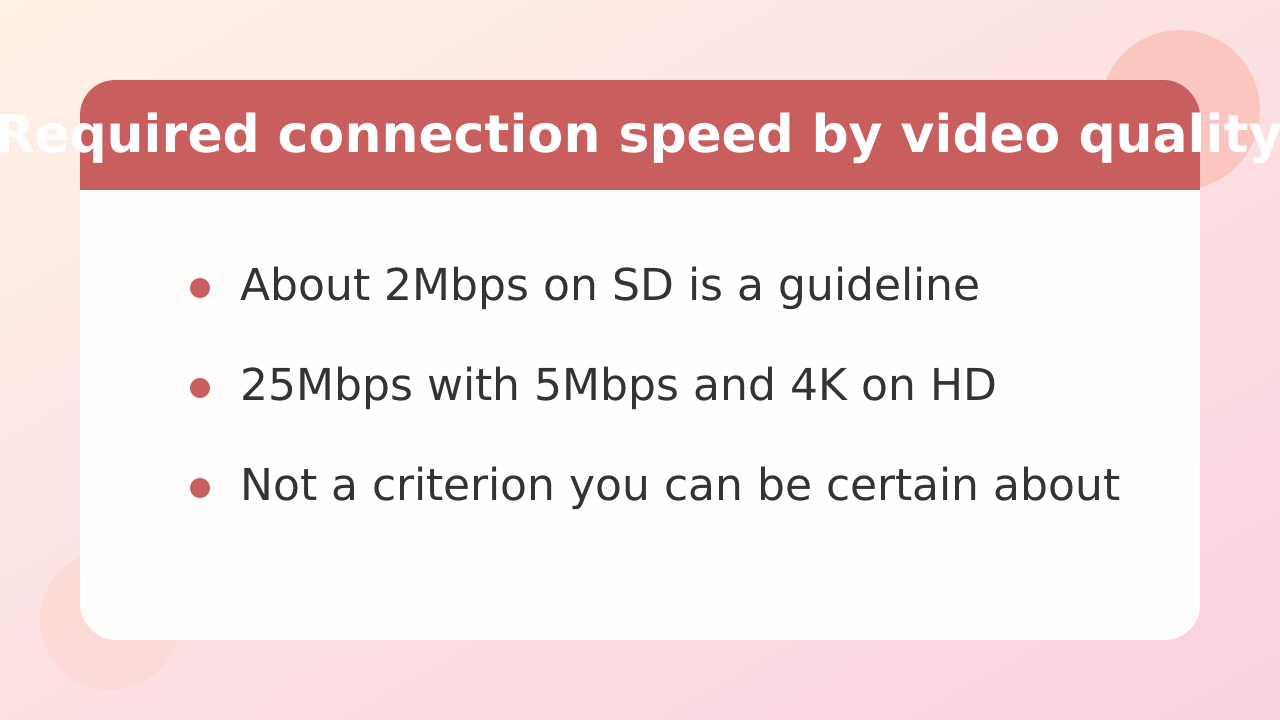
There are figures commonly used as guidelines for matching video quality with connection speed, but they cannot be presented as officially established standards. The bitrate of each stream varies depending on the performer's settings, the time of day, and server conditions.
As general guidelines, SD (480p or so) is around 2Mbps, HD (720p to 1080p) is around 5Mbps, and 4K is around 25Mbps. These are only rough levels at which you are more likely to have enough capacity; being below them does not necessarily mean you will be unable to watch.
The surest way to check whether it is actually enough is to switch video quality. If the highest quality causes dropped frames or audio skipping, try lowering it by 1 level(s) and see whether it stabilizes.
Factors other than the connection also matter. If Wi-Fi, using the 5GHz band, switching to a wired connection, or stopping devices that are streaming videos or playing games at the same time may be more effective.
Stripchat | Ways to use PC unique to it: simultaneous viewing, split screen, shortcuts that work
The biggest differences from a smartphone are that you can open multiple streams at once and use a keyboard to operate it.
Open simultaneously in multiple tabs: Open a new tab with Ctrl+T and arrange different shows side by side. Since the audio will overlap, right-click the tabs other than the main one and select "Mute tab" for a more comfortable experience.
Split the screen: In Windows, you can place windows in left and right halves with "Windows key + ←/→". You can arrange the stream on the left and chat or another tab on the right.
Main keyboard shortcuts
| Key | Action |
|---|---|
| F11 | Toggle browser full screen |
| Esc | Exit fullscreen |
| Ctrl+T | Open a new tab |
| Ctrl+W | Close the current tab |
| Ctrl+Tab | Switch to the next tab |
| Ctrl+D | Add to bookmarks |
| Ctrl+Shift+N | Open an incognito window |
| Ctrl+Shift+Delete | Clearing history and cache |
| Ctrl++/ - | Zoom level in/out |
If you lower the zoom level, you can fit more information on a large screen. Conversely, if the text feels too small, raise it.
Stripchat | Symptom-by-symptom checklist for when it won't play, is laggy, or has no sound.
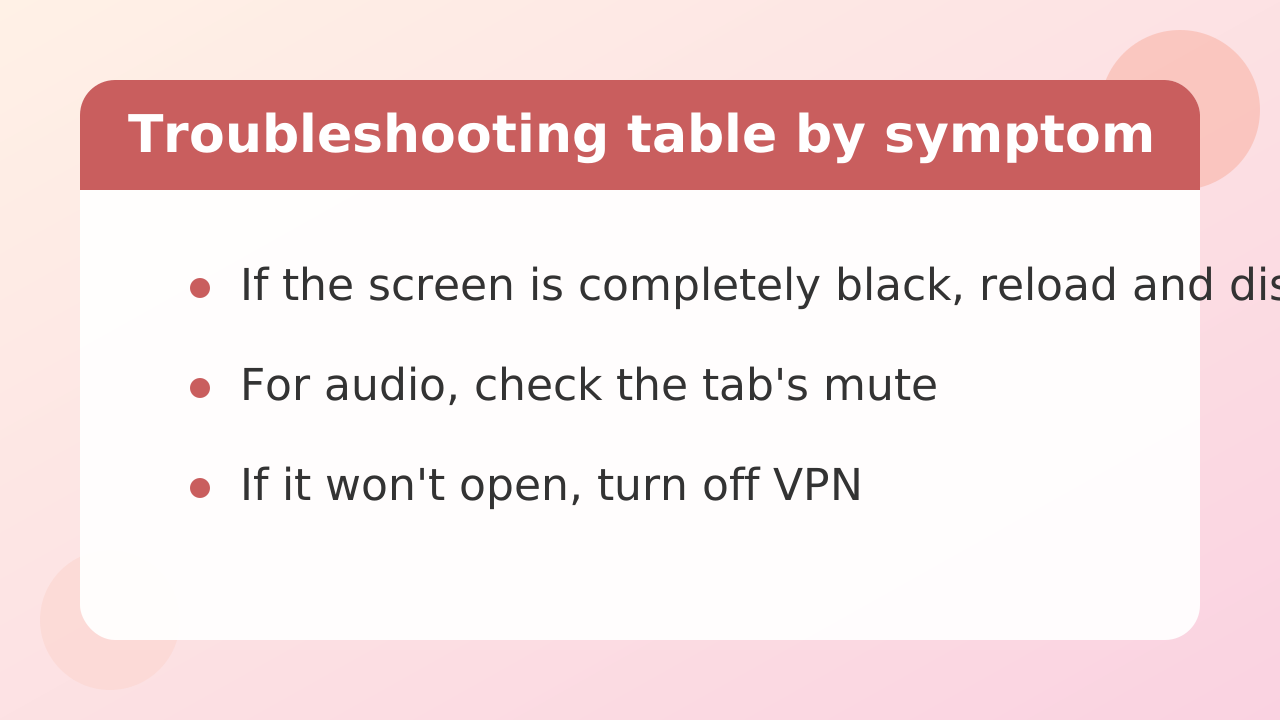
Rather than searching randomly for the cause, you can solve problems faster by deciding the order in which to check things for each symptom.
| Symptoms | Common causes | What to try |
|---|---|---|
| The video is completely dark or frozen | Loading failures, ad blocker interference | Reload, temporarily turn off the ad blocker, close other tabs |
| No sound | Tab mute, output destination settings | Check the tab's speaker icon, the OS volume mixer, and the earphone connection. |
| Laggy / stuttering | Connection speed, PC load | Lower video quality by 1 steps, close other tabs, disable extensions, switch to 5GHz or wired connection |
| Page won't open | VPN - proxies and regional differences | Turn off VPN, try another browser, or wait a while |
| Camera sharing unavailable | Camera permission not configured | Allow the camera from the icon to the left of the address bar, and check whether another app is using the camera. |
| Suddenly unable to log in | Session expired, Cookie limit | Log in again, check whether Cookie is allowed |
Whether camera sharing involves an additional charge may vary by performer. It cannot be assumed to be free, so check the actual conditions in the performer's own instructions or the official explanation.
If that still does not fix it, try refreshing the browser, clearing the cache, and then trying a different browser, in that order.
You may sometimes see explanations blaming a black screen on the old playback system, but that no longer applies. Start by reloading the page and checking your ad blocker.
Stripchat | Watching without leaving a history: some things remain even in private browsing
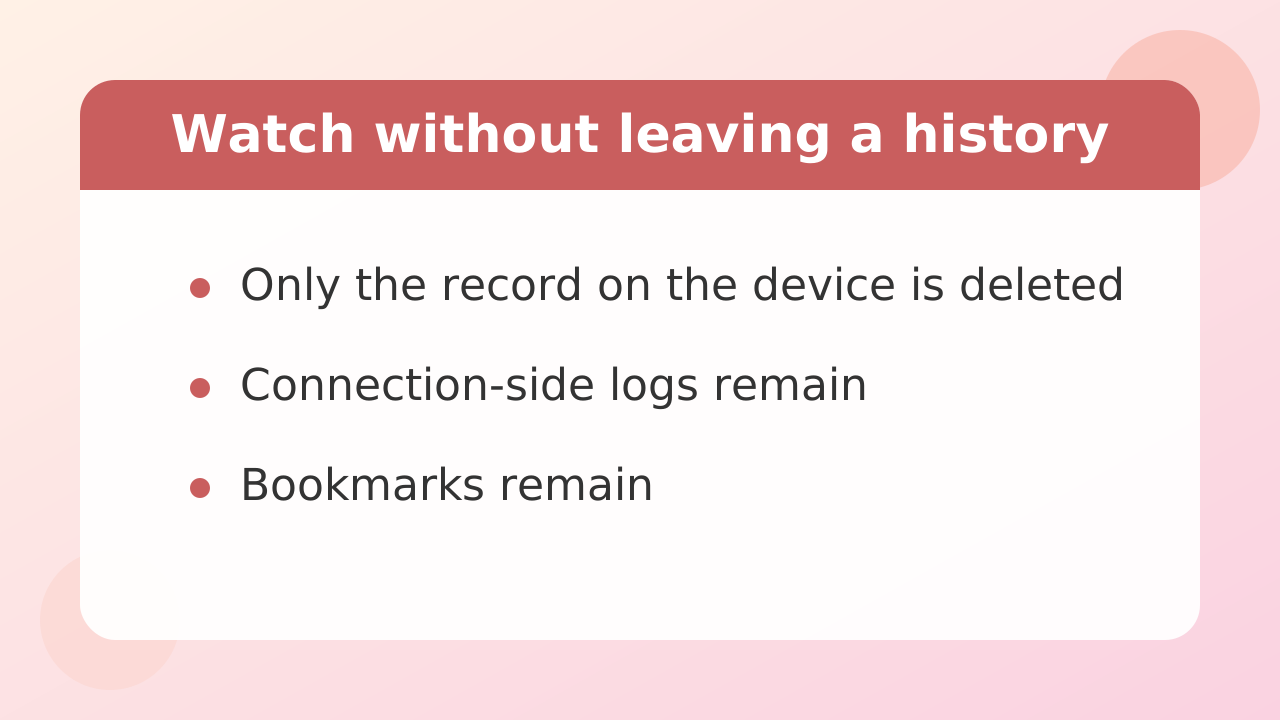
During normal viewing, your viewing history, Cookie, and cache remain on your device. If you do not want to leave them behind, use incognito mode (Chrome and Edge are Ctrl+Shift+N).
However, incognito mode only removes records stored on the device. At a company or school, PC may be recorded by network administrators, and records kept by the router or internet provider are not erased either. As a general rule, use a personal PC for viewing.
Closing incognito mode also clears your login state, so you have to log in again each time. Decide based on whether you prioritize the items you do not want to leave behind or the extra effort.
Information remaining in bookmarks or browser extensions stays even if you clear your history. Do not register on a shared PC.
Stripchat | FAQ: Q&A on detailed questions about PC viewing
Q. Is there an app for PC?
A. There is no dedicated app. Please open it in a browser. Software with the same name found in app stores is not necessarily official.
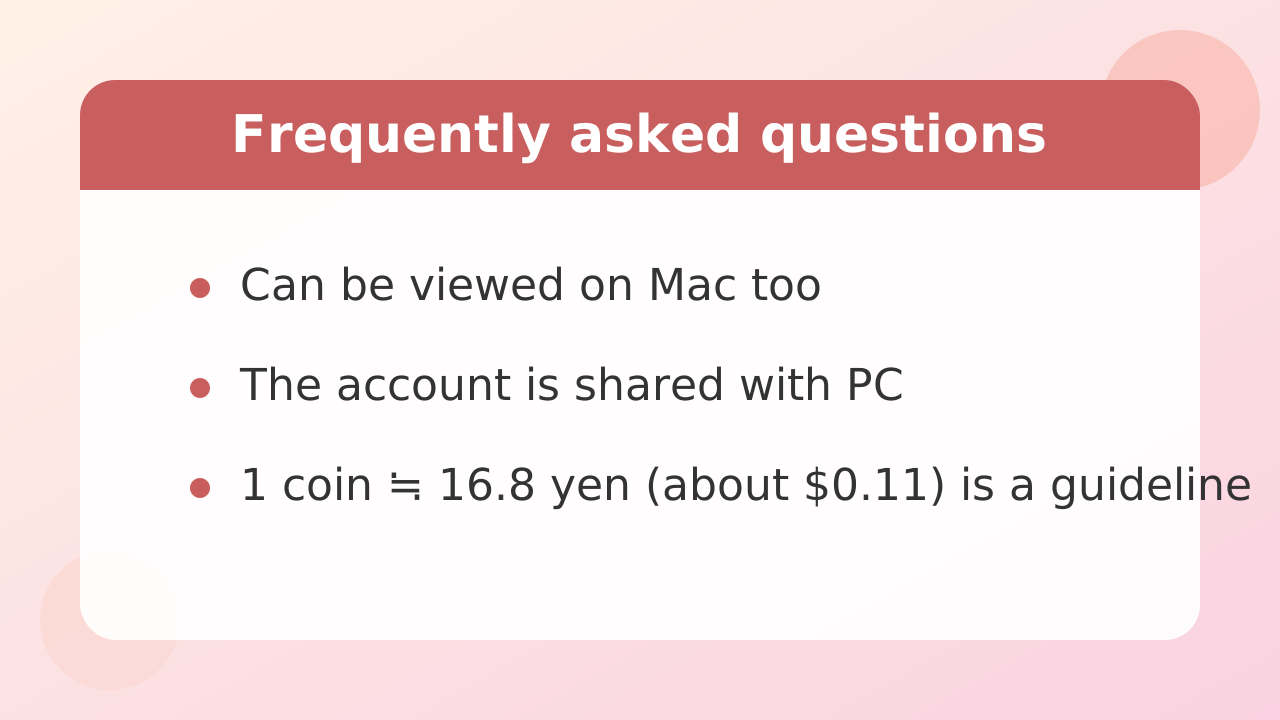
Can I watch it on Q. Mac too?
A. Yes, you can watch it. You can view it in browsers that support macOS, such as Safari, Chrome, Edge, and Firefox.
Is the account shared between Q. PC and a smartphone?
A. You can log in with the same account, and your balance and favorites are usually shared.
Can I watch it on Q. 4K?
A. Both the performer's settings and your own connection are required. Even if you select the highest quality, if the stream is HD, it will remain HD.
Q. How much do 1 coin cost?
A. It depends on the pack you buy. As a rough guide based on small packs, 1 coin is about 16.8 yen (about $0.11), but be sure to check the amount shown on the purchase screen.
Q. Can I watch for free?
A. Public shows can be watched for free. Tips are optional but non-refundable, so it is reassuring to set a budget limit before you start watching.