
Stripchat | Try this first: lower the video quality (you'll know in 30 seconds)
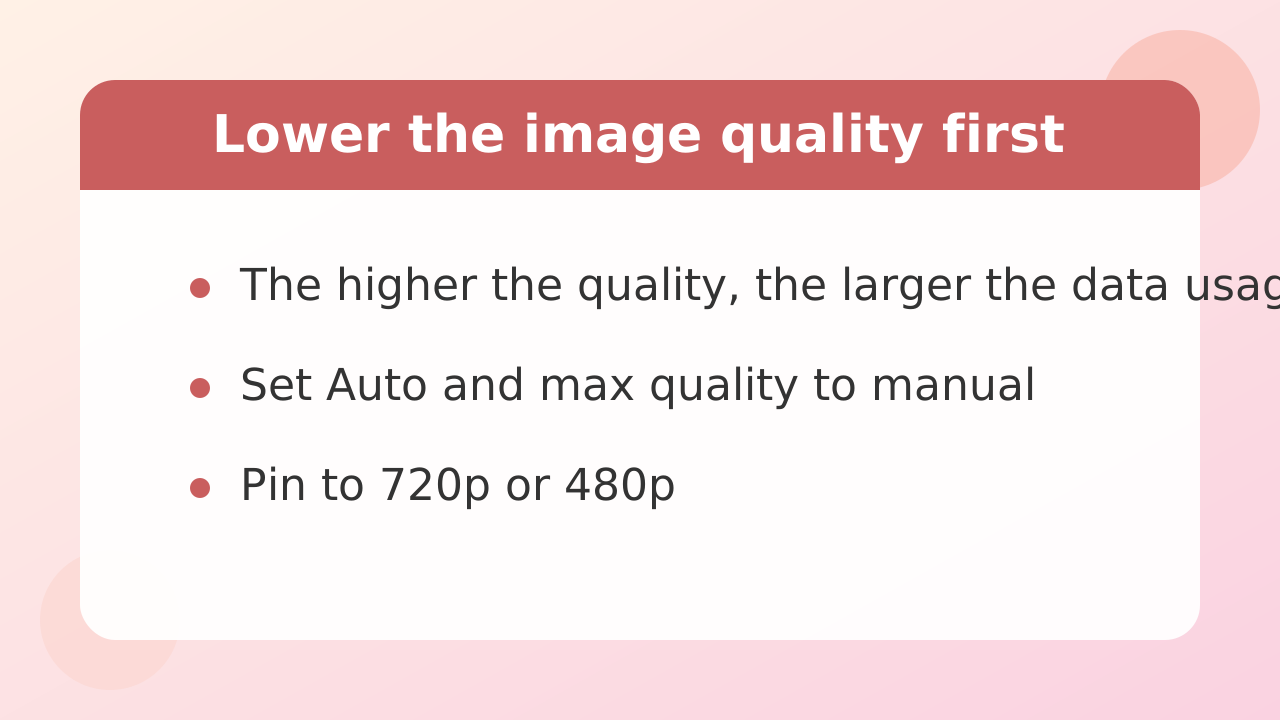
When a stream stutters and stops, the fastest fix is to drop the quality setting on the player by one step. Higher-quality video means more data arriving every second, so even a small hiccup in the incoming stream can freeze the picture or let the audio run ahead.
If you found this article while looking for past recordings or posts, check the fan club posts and galleries on each performer's profile page. Here we are focusing on fixing lag, stuttering, and freezing in live streams in real time.
In the bottom right of the player, or inside the settings menu, you'll see a gear icon or a number showing the current quality (1080p, 720p, 480p, or Auto). If it's set to Auto or the highest quality, it can't keep up with small fluctuations in your connection, and the picture cuts out constantly.
Set it manually to one step lower, such as 720p or 480p. The amount of data being sent drops sharply, and in most cases the dropped frames stop and playback smooths out right after you change the setting.
Stripchat | Test whether your connection is fast enough — speed needed per quality level
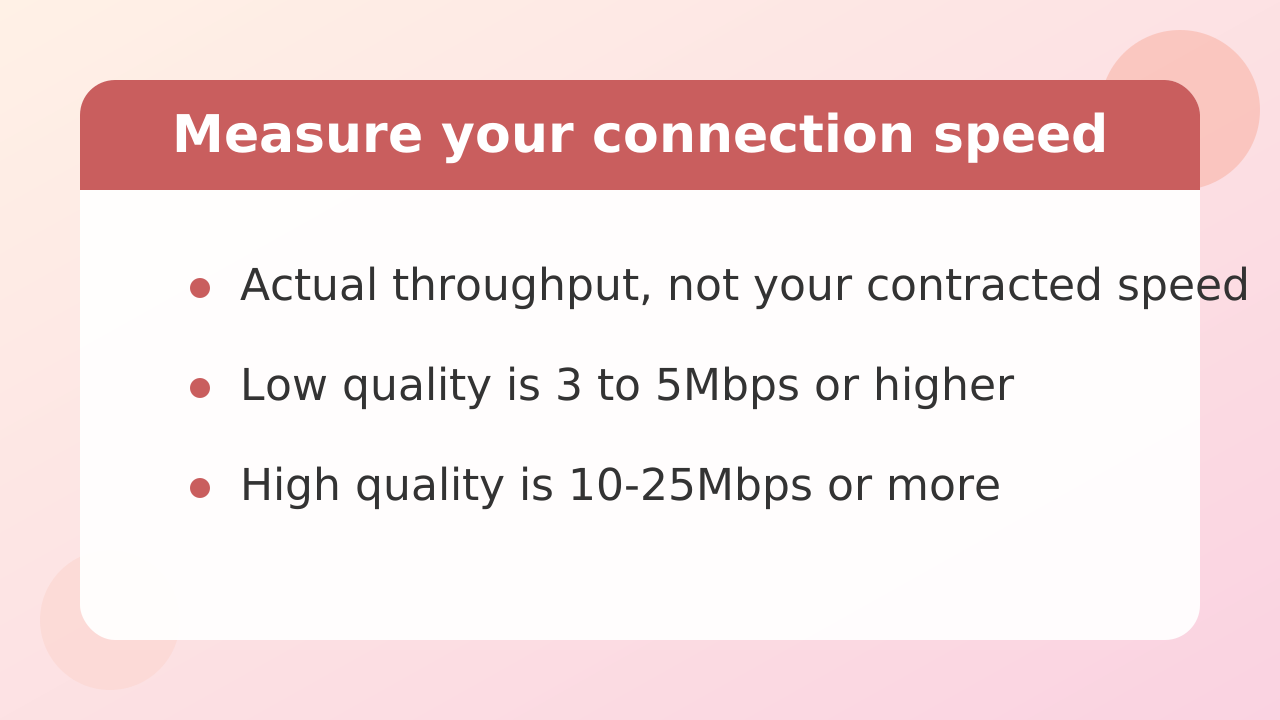
If video keeps freezing, your actual internet speed may not be keeping up with the data the stream requires. Start by measuring how much download speed you're really getting on your current connection.
Use a general speed test service or the connection test screen inside the platform to check your real-world numbers. What matters is not the maximum speed in your contract, but the effective speed reaching your device right now.
The speed you need for stable live streaming depends heavily on the quality you choose. General guidelines for live streaming are below.
| Quality level | Recommended effective download speed | What it looks like |
|---|---|---|
| Low (360p–480p) | Roughly 3–5 Mbps or more | Standard quality that looks fine on a phone screen |
| High (720p–1080p) | Roughly 10–25 Mbps or more | Sharp in fine detail, but demands a very stable connection |
| Ultra (2K–4K) | Roughly 30–50 Mbps or more | Made for large monitors, but even slight fluctuations cause stops |
If your measured speed is below 10 Mbps, high-quality real-time playback will be tough. Speeds tend to drop sharply during busy evening hours, so test at the moment the problem happens.
Stripchat | What you can do on the connection side (router restart, wired, time of day)
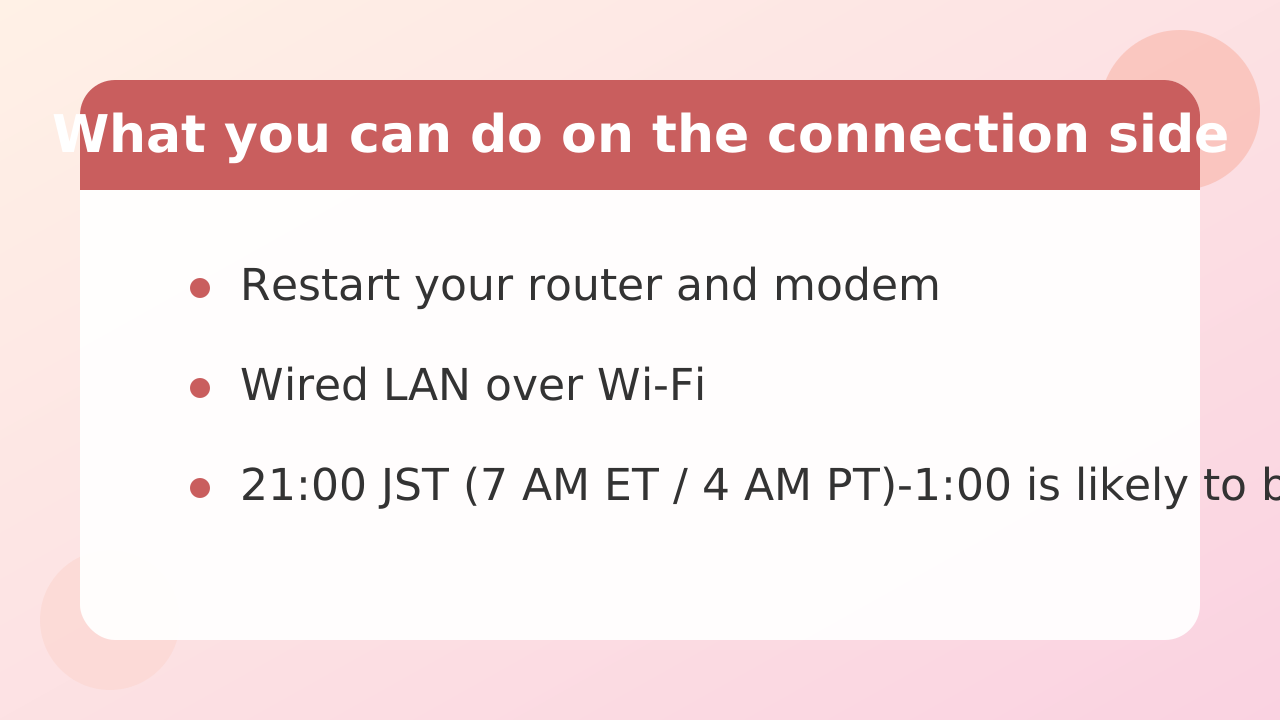
When your speed is insufficient, restarting your router or switching to a wired connection is the most direct fix. No matter how powerful your device is, video data can't arrive properly if the entry point is clogged.
Restart your Wi-Fi router and modem
When a router runs continuously for a long time, temporary data builds up in its internal memory and processing power drops. Unplug it from the outlet, wait about a minute, then plug it back in. This alone often improves the signal and restores speed significantly.
Switch to a wired LAN cable
If you're watching on a computer, moving from Wi-Fi to a wired LAN connection is the reliable option. Wireless is vulnerable to obstacles like walls and furniture, plus interference from microwaves and other appliances, which causes brief packet loss. A direct LAN cable keeps connection fluctuations close to zero.
Account for peak hours
On shared housing connections and typical fiber lines, provider equipment in your area gets congested in the evening (roughly 9 PM to 1 AM). If family members on the same connection are downloading large files or streaming video, that squeezes your bandwidth too. Check what else is using the connection, and if possible avoid peak hours or try when the household load is low.
Stripchat | What you can do in your browser (update, cache, disable extensions)
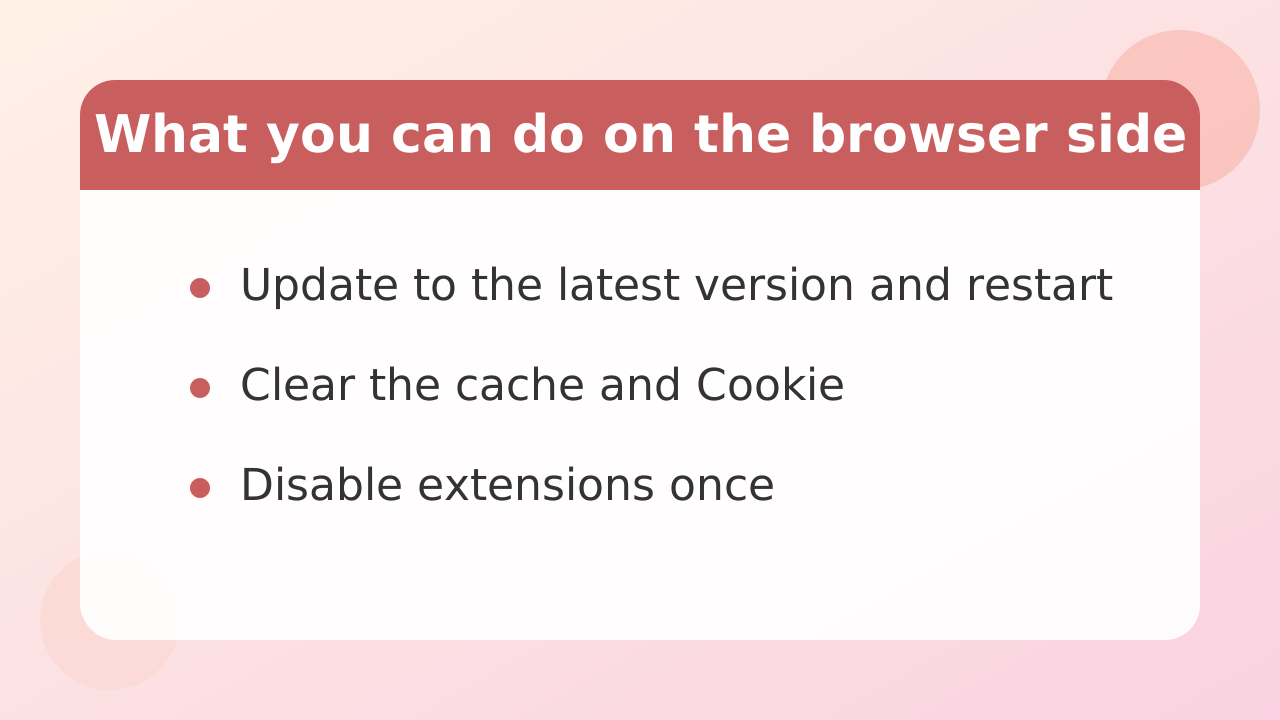
If your connection speed is fine but video still freezes, the cause is your browser's settings or accumulated data. If the browser's internal processing can't keep up, the picture stops rendering even when data is arriving correctly.
Update your browser to the latest version
If Chrome, Safari, Edge, or Firefox is on an old version, it can't efficiently handle the latest streaming protocols. Open the help or settings menu and check whether an update is pending. Always restart the browser after updating.
Clear cache and cookies
If cached data stored in your browser is corrupted or has piled up, the player's scripts run extremely slowly. Clear your browsing history and temporary cache from the browser's privacy settings. On a browser that hasn't been cleared in a long time, this alone can dramatically improve performance.
Disable extensions like ad blockers
Extensions (add-ons) you've installed can accidentally interfere with the player's communication or control scripts. Content blockers, ad-hiding tools, and security extensions are common culprits. Disable all extensions at once, or open the page in a private/incognito window to test how it behaves.
Stripchat | Reduce the load on your computer or phone
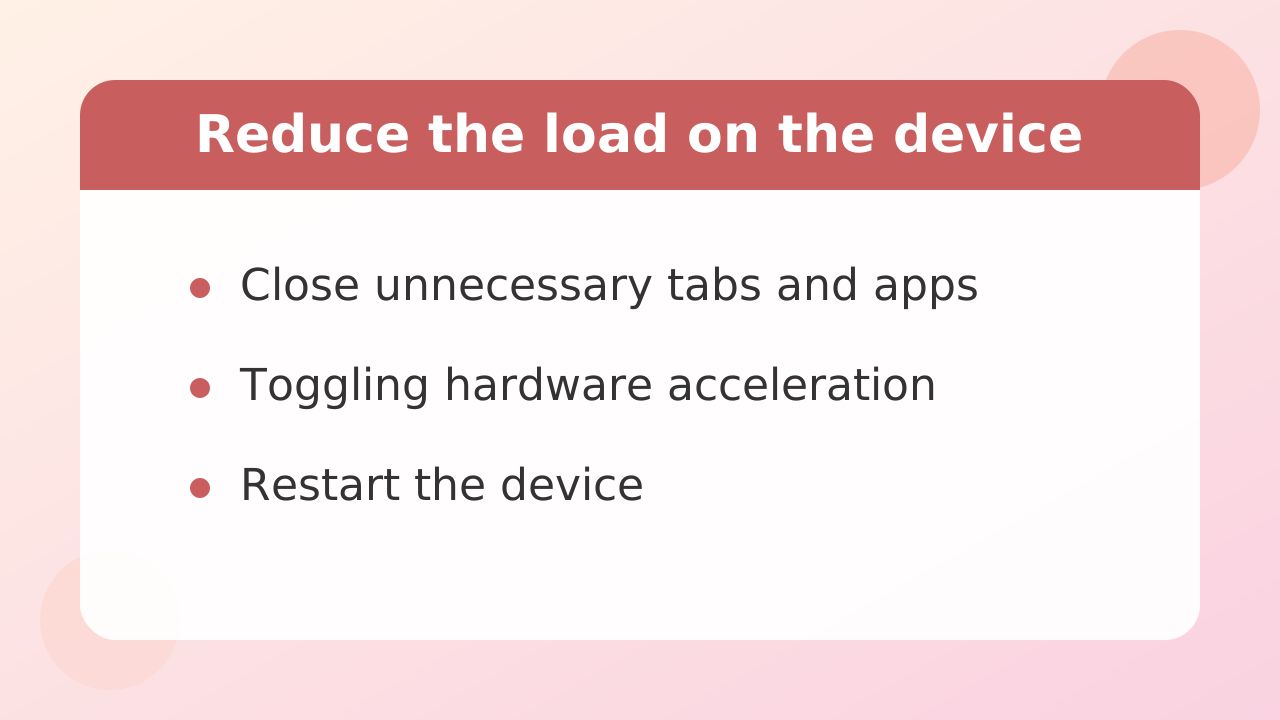
If neither your connection nor your browser is the problem, a lack of CPU or memory on the device itself is causing the dropped frames. Decoding high-resolution live video in real time takes a real toll on your device's processing power.
Close unnecessary tabs and background apps completely
Leaving dozens of browser tabs open, or running video editing software or games in the background, drains your memory. Close every tab except the one you're watching, and shut down background applications from your task manager.
Check your browser's hardware acceleration setting
Desktop browsers have a hardware acceleration feature that hands video processing to the graphics card (GPU) instead of the CPU. Normally leaving it on makes things lighter, but depending on your graphics driver it can actually cause stuttering. Toggle it on and off in the settings menu and compare which state plays more smoothly.
Restart the device itself
Both computers and phones get sluggish after days of uptime as invisible processes pile up. Fully restart your device once to clear out excess memory use, then try again.
Stripchat | If only one performer's stream freezes - this one you can't fix
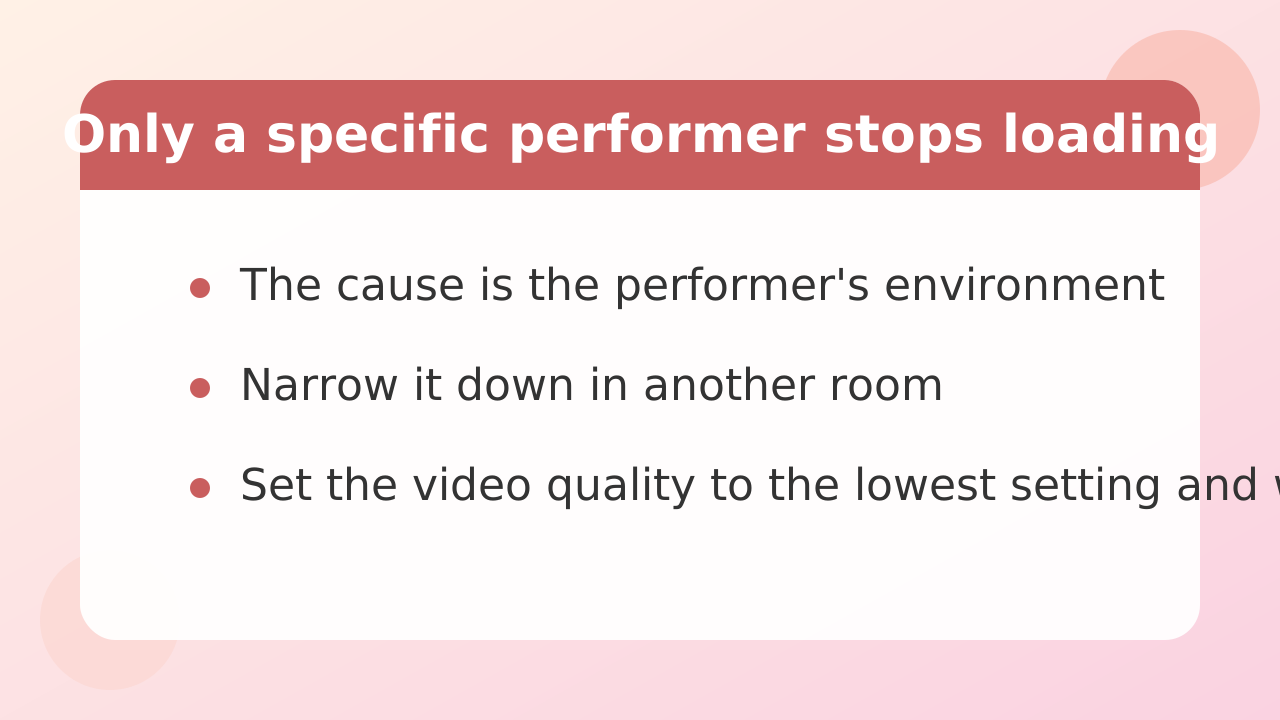
If other rooms play fine but one performer's stream stutters, the cause is on the broadcaster's side, not yours. In that situation, no amount of adjusting on your end will solve it at the root.
Live streaming works by the performer's device capturing camera video and uploading it through the internet to the streaming server. If the performer's own Wi-Fi is weak, their computer can't keep up, or their upload speed has dropped badly, the video breaks up before it ever reaches the server.
The test is simple. Open another Japanese performer's room or an international performer's room at the same time. If that one plays smoothly, your connection and device settings are fine.
Your options as a viewer are limited here. Drop the quality to the lowest setting, 360p or 240p, to reduce buffering load, or wait for the performer to reconnect or restart their stream. Letting them know gently in chat that "it's stuttering a bit" is one option, but don't make demands — patience is the right approach.
Stripchat | Checks for when your phone keeps freezing
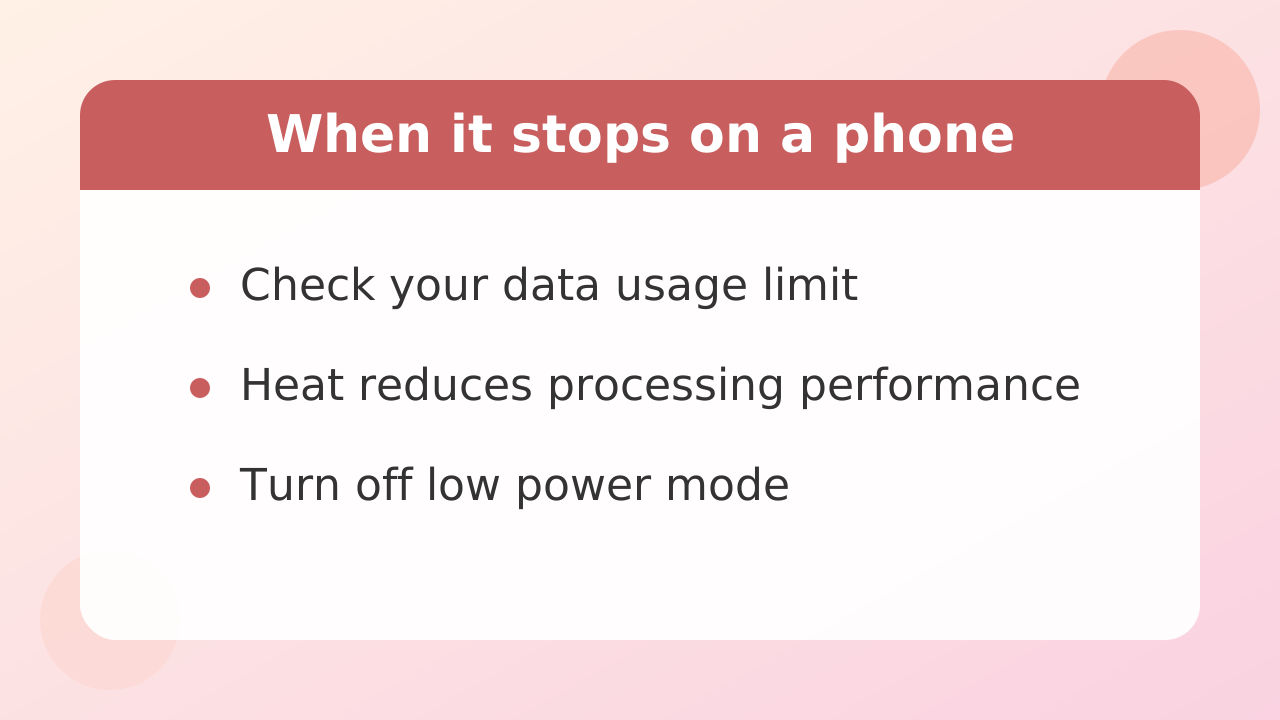
If video freezes constantly on your smartphone, suspect mobile data limits, device overheating, and power-saving mode interference. Compared to computers, phones are directly affected by their surroundings, so there are specific things to check.
Mobile data remaining and signal strength
If you're watching on 4G or 5G, check whether you've used up your plan's monthly data and been throttled. Also, even with full bars, actual speeds can collapse underground, on a packed train, or deep inside a large building. Live streaming uses a lot of data, so watching over a strong home Wi-Fi connection is the baseline.
Heat causing the phone to slow down
Watching video for a long time, or watching while charging, makes your phone's battery and CPU heat up fast. Smartphones have a safety feature (thermal throttling) that cuts processing power to less than half to protect the device. When that kicks in, video stutters badly, so unplug the charging cable, take off the case, and let the phone cool down in a cool room.
Turn off low power mode and battery saver
Power-saving features that activate when your battery gets low limit the CPU clock speed and block background communication. With power-saving mode on, high-resolution video decoding can't keep up. Turn off low power mode in your settings and make sure you have enough battery before playing.
Stripchat | If you use a VPN
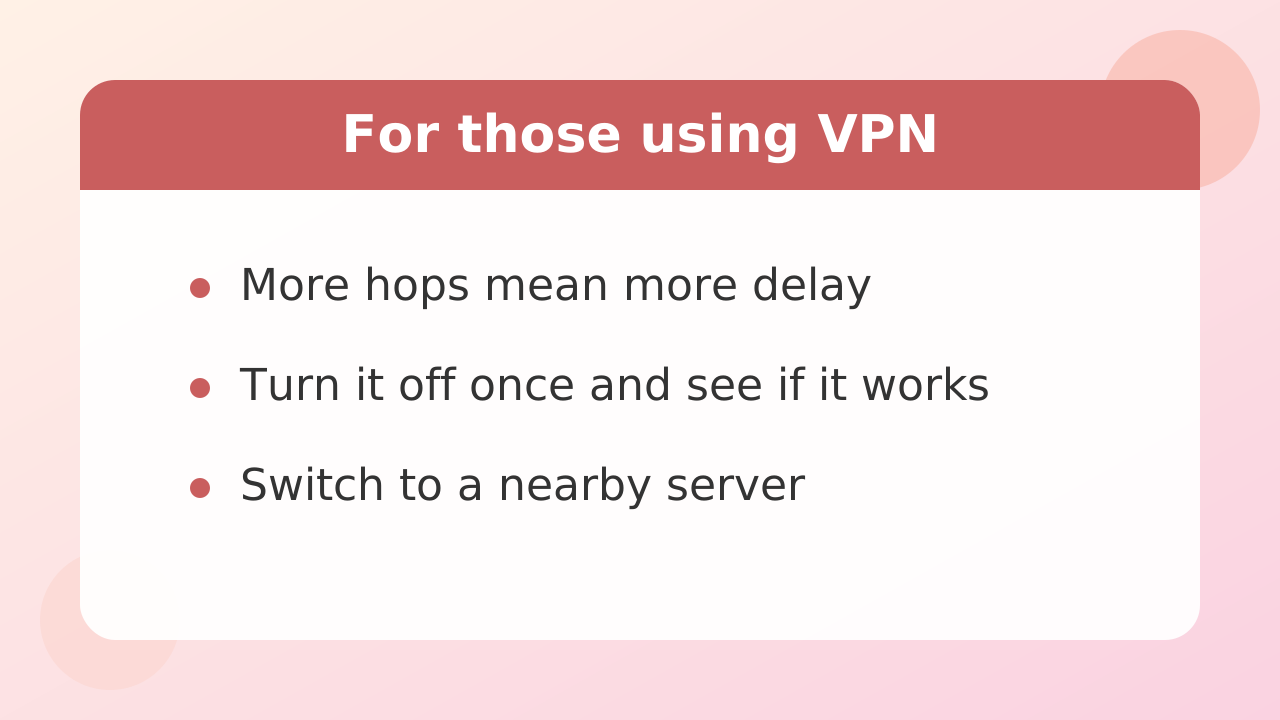
If you connect through a VPN (virtual private network) for privacy or security, that route itself can be the biggest cause of video delay. A VPN encrypts your data and routes it through relay servers around the world, adding physical distance and extra processing steps.
Free VPN services and heavily loaded servers in particular have severely limited bandwidth and can't handle the large data flows of live streaming. Also, if your exit country is set far from Japan (Europe or South America, for example), round-trip latency gets long and buffering happens constantly.
If video freezes while you're on a VPN, first disconnect the VPN completely and open the stream on your normal connection. If it plays fine, the VPN is entirely the cause.
If you don't want to drop the VPN for security reasons, try these adjustments:
- Choose a server in Japan or a nearby Asian country to keep physical distance short
- Switch the protocol to a lighter, faster standard (such as WireGuard)
- Manually switch to a different, less crowded server
- Use a paid, reputable VPN service with guaranteed high-speed bandwidth
Stripchat | If nothing works (template for what to tell support)
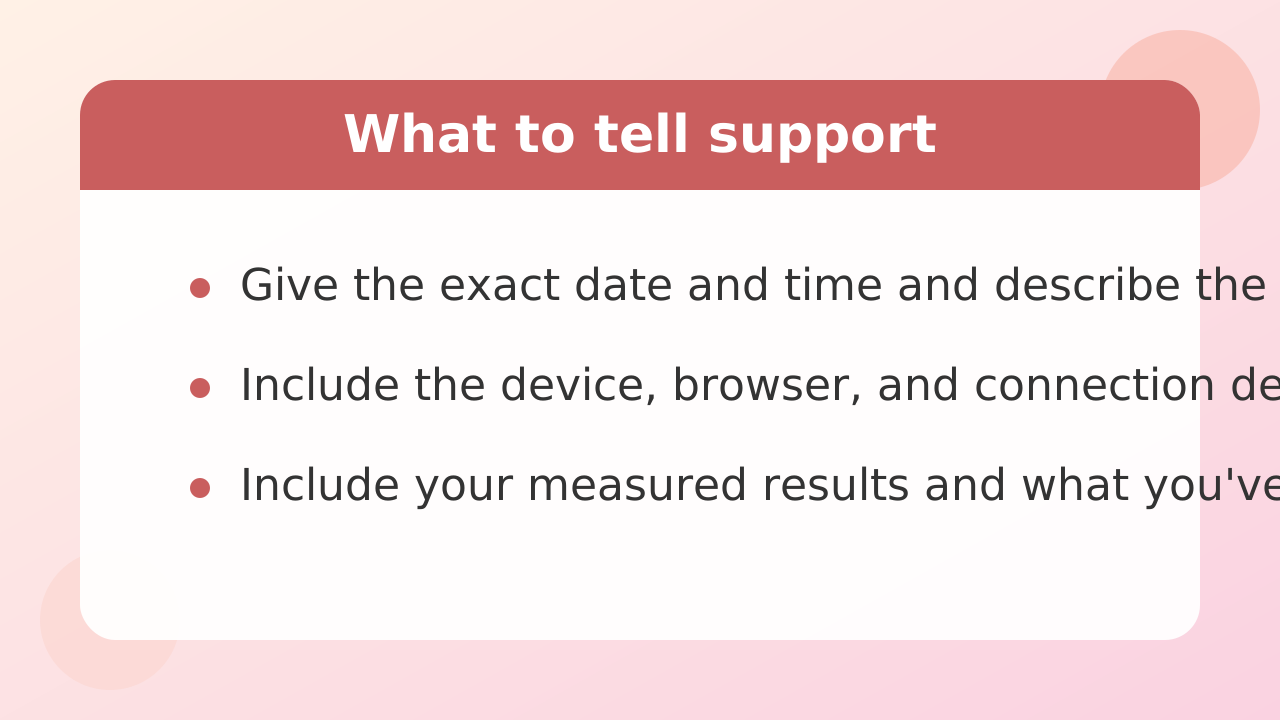
If you've changed the quality, restarted your equipment, and adjusted your browser with no improvement, it may be a temporary issue on the system side, so contact support. When you do, simply saying "it's laggy" or "I can't watch" won't help them investigate.
To help support pinpoint the cause quickly, organize your setup and what you've tried into a bullet list before sending. Fill in the items below and submit them through the contact form.
Support contact template
- When it started: from around [date] [time] until now
- Symptoms: the stream stops every few seconds, audio plays but video doesn't move, etc. — be specific
- One performer or all: happens in every performer's room / only in one performer's room (username)
- Device: computer (Windows 11) / smartphone (iPhone 15), etc.
- Browser and version: Google Chrome latest / Safari, etc.
- Connection type: fiber (Wi-Fi) / mobile carrier (5G), etc.
- Measured speed: download [XX] Mbps
- Fixes already tried: lowered quality to 480p, restarted router, cleared browser cache, tested in incognito mode
With this much information ready in advance, support can immediately narrow down whether it's a routing problem, an account-linked setting, or a server outage.
Stripchat | FAQ
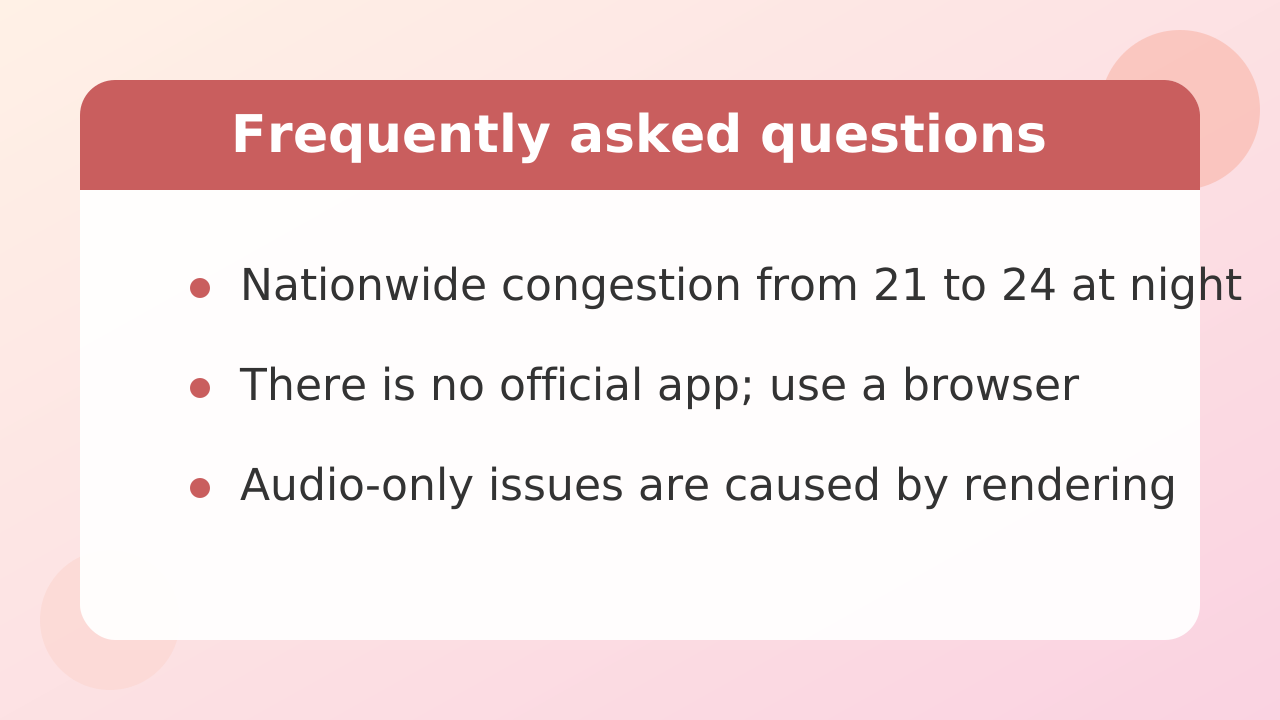
Here are short answers to the smaller questions readers ask most often when stream playback is unstable.
Why does it get laggy at the same time every day?
From around 9 PM to midnight Japan time (8 AM to 11 AM ET), internet usage peaks across the country. Congestion in your building's wiring or your provider's equipment lowers effective speeds. Japanese performers also tend to stream in this window — the busiest hours are 22:00–0:00 JST (9 AM–11 AM ET) — so heavy access piles on top of that. Dropping the quality one step in advance is the reliable defense.
Is there a dedicated viewing app?
There is basically no official native smartphone app (of the kind distributed on the App Store or Google Play); the design is for watching through a browser. Installing unofficial apps or suspicious files risks account takeover and malware, so always access the site through a legitimate browser like Chrome or Safari.
The screen stays black but I can hear audio — why?
Most likely the browser's rendering (graphics decoding) can't keep up, or an extension is blocking the video player's rendering scripts. Toggle hardware acceleration in your browser settings, or open the page in an incognito window once to rule out extension interference.
Sending tips and chatting works fine, so why does only the video freeze?
Text and tip data are only a few kilobytes, so they send and receive fine even on a slow connection. Video data, by contrast, consumes thousands of times that bandwidth continuously. Chat working doesn't mean your connection is perfect, so run a speed test to check your effective speed.