Stripchat | What C2C (cam2cam) is: a feature that shows your camera feed to the performer
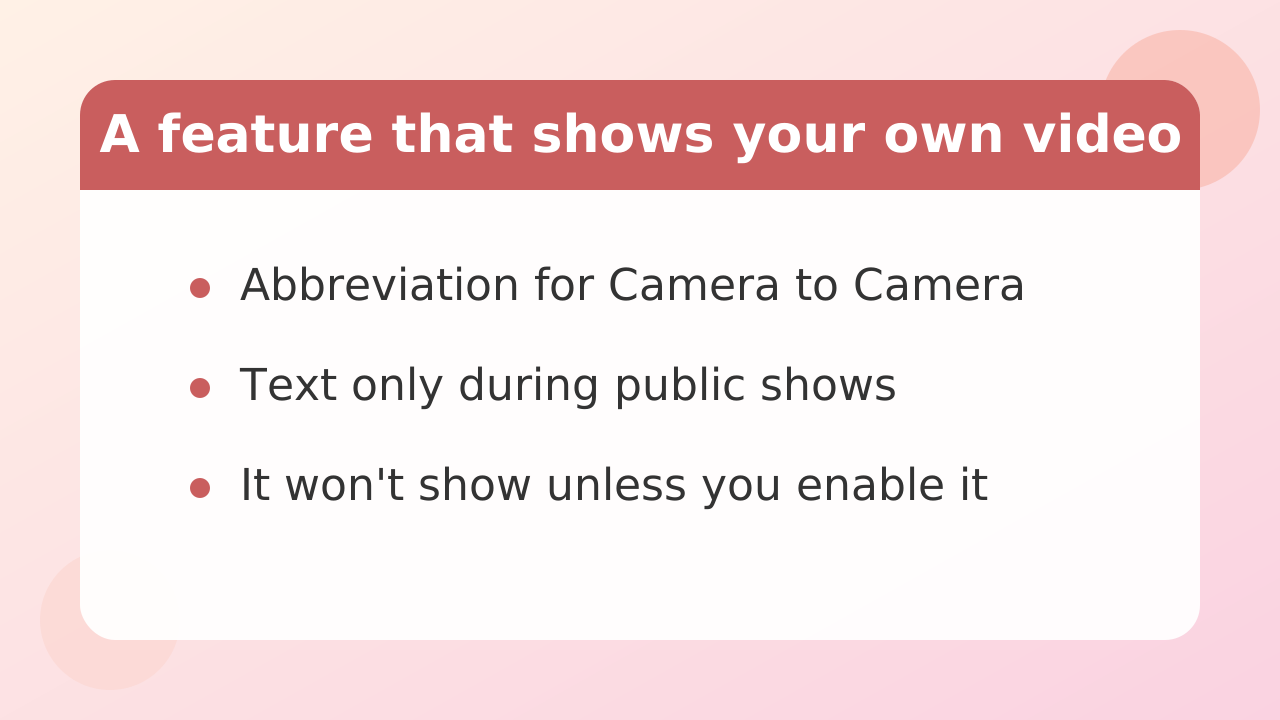
C2C stands for "Camera to Camera," and it's also called a two-way camera private or mutual camera private. When you're watching a public stream normally, only your text chat reaches the performer. Your camera feed is sent to the performer only after you enable C2C on your end.
The most important point: your camera never turns on by itself. Mutual camera is an option available inside a private show, and no video is sent unless you enable it. Keep this one fact in mind first.
| How you watch | What the performer sees | What you can exchange |
|---|---|---|
| Public chat (free viewing) | Text only | Text, tips |
| Private (no mutual camera) | Text only | Text; audio depends on the performer |
| Private + mutual camera (C2C) | Your camera feed | Text, audio, video |
In other words, C2C is "an add-on option available only inside a private show." It's not a standalone feature.
Stripchat | Which rooms it works in - not available in public chat
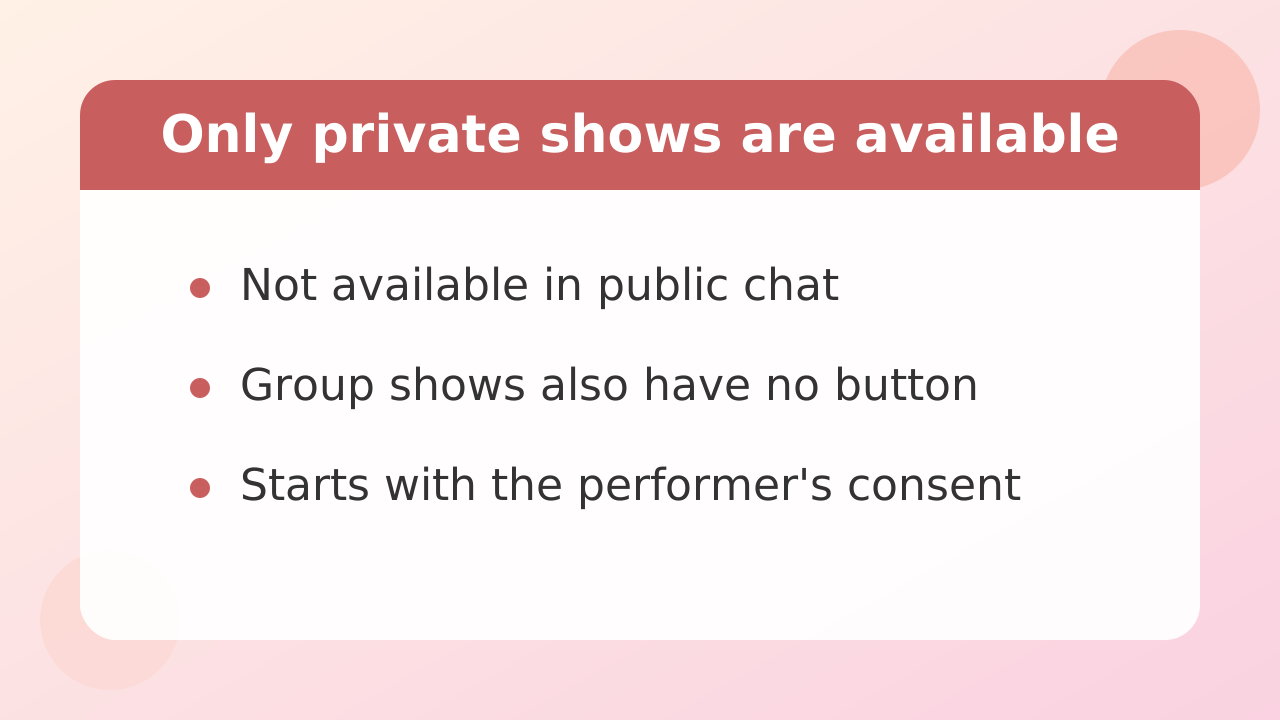
Mutual camera can only be used after you enter a private show. In group shows or ticket shows, where multiple viewers watch at the same time, the button to share your camera doesn't appear at all. Entering a private show is a prerequisite.
On top of that, a private show itself only starts with the performer's consent. It won't begin unless they accept, and some performers don't support mutual camera at all. The surest way to check is to look at the menu display in that specific room.
So the answer is: it's not "always available." Even if you see it mentioned during a public stream, you can only actually use it after entering a private show.
Stripchat | Four steps to get started
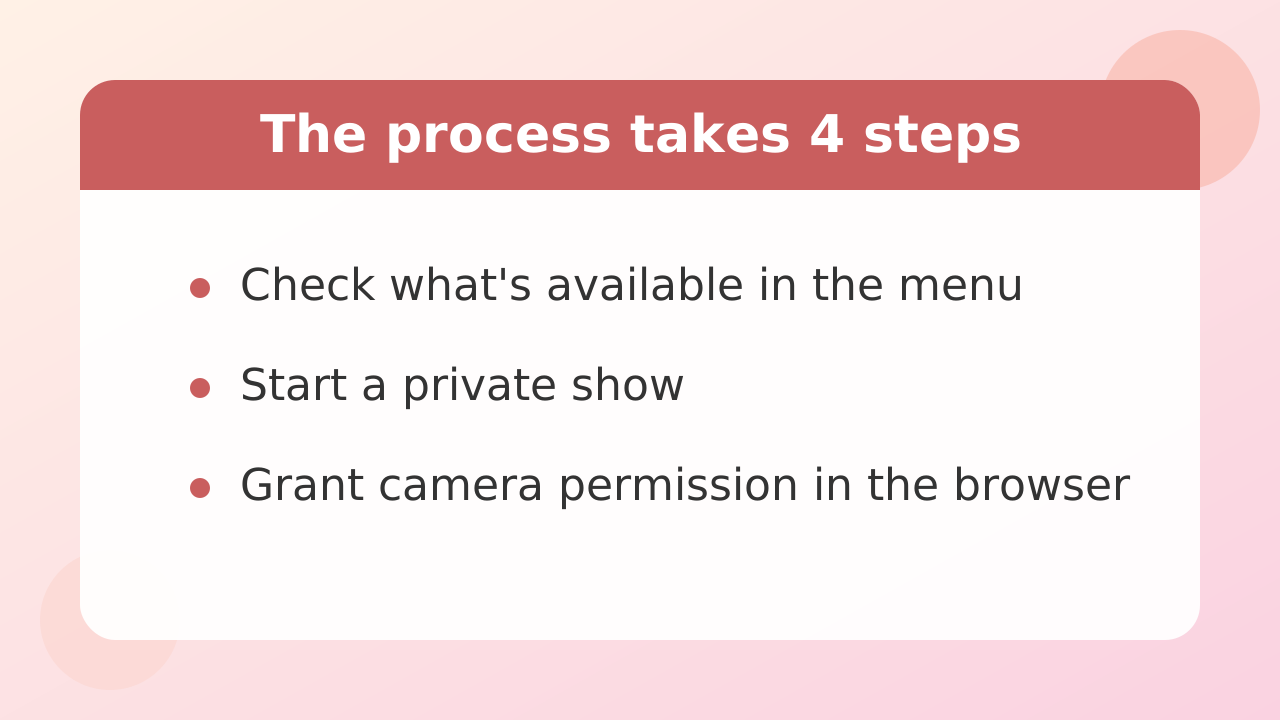
The flow is: choose a room, start a private show, enable mutual camera, then grant browser permission. Skipping a step will stop you partway, so follow this order.
- Open a performer's room and check whether the menu has a mutual camera option
- Start a private show. The per-minute price is displayed at this point, so be sure to read it
- Inside the private show, press the mutual camera button to enable it
- The first time, your browser will ask for camera permission — choose "Allow"
You are the one granting permission. If you want to avoid mis-clicks, check your browser's camera settings beforehand so you can proceed calmly. Note that you can turn off video transmission at any time.
Stripchat | How pricing works - the performer sets it, so know where to check before you start
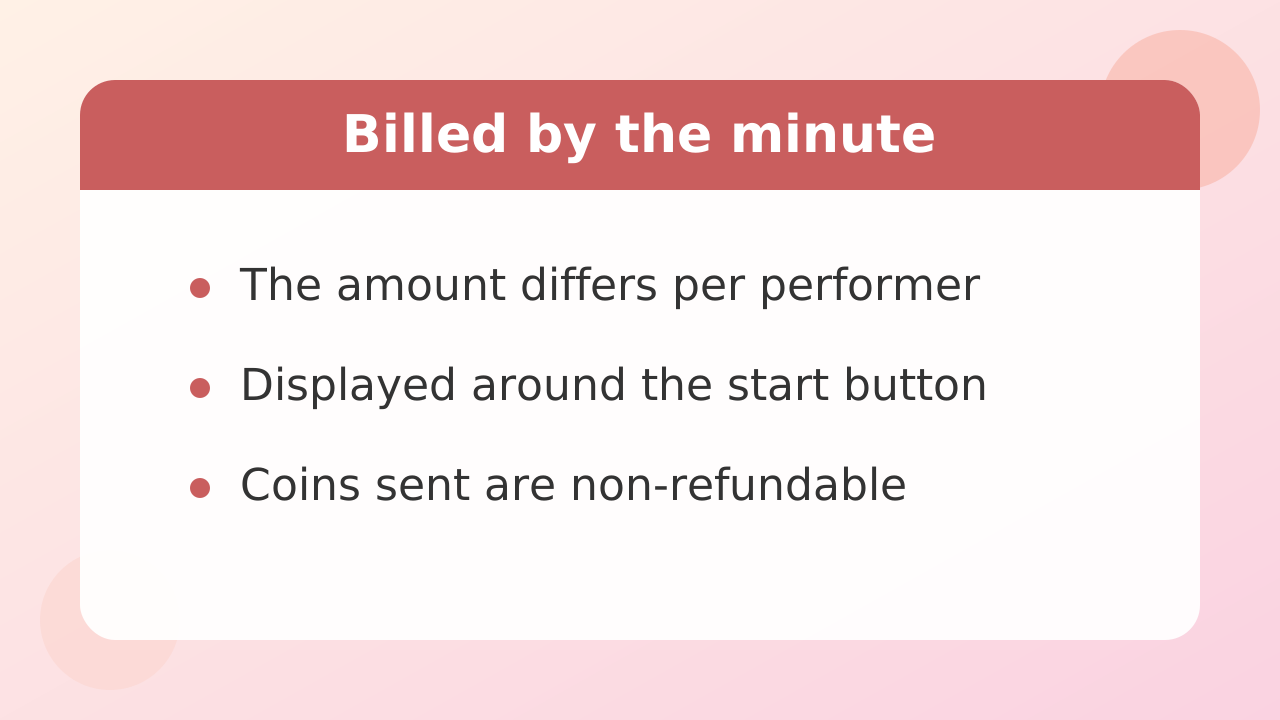
Charges are deducted on a per-minute basis. It's not a subscription; coins are consumed according to how long you stay in the private show. Coins are the site's internal currency, and the dollar amount depends on which coin package you purchased (for example, 90 coins = 9.99 USD).
The rate differs from performer to performer. There's no site-wide fixed price list — the per-minute amount is shown in each room's menu or around the private show start button. That display is the only reliable place to check.
Whether using mutual camera itself costs extra or is included in the private show rate could not be confirmed from official documentation. It's commonly said to be included, but we can't state that as fact. Judge based on the display before you start, and ask the performer if needed.
Coins you spend are not refunded. They're treated the same as tips. Decide your budget limit before entering — that's the safe approach.
Stripchat | How it differs from spy mode — which one to pick if you want to spend less
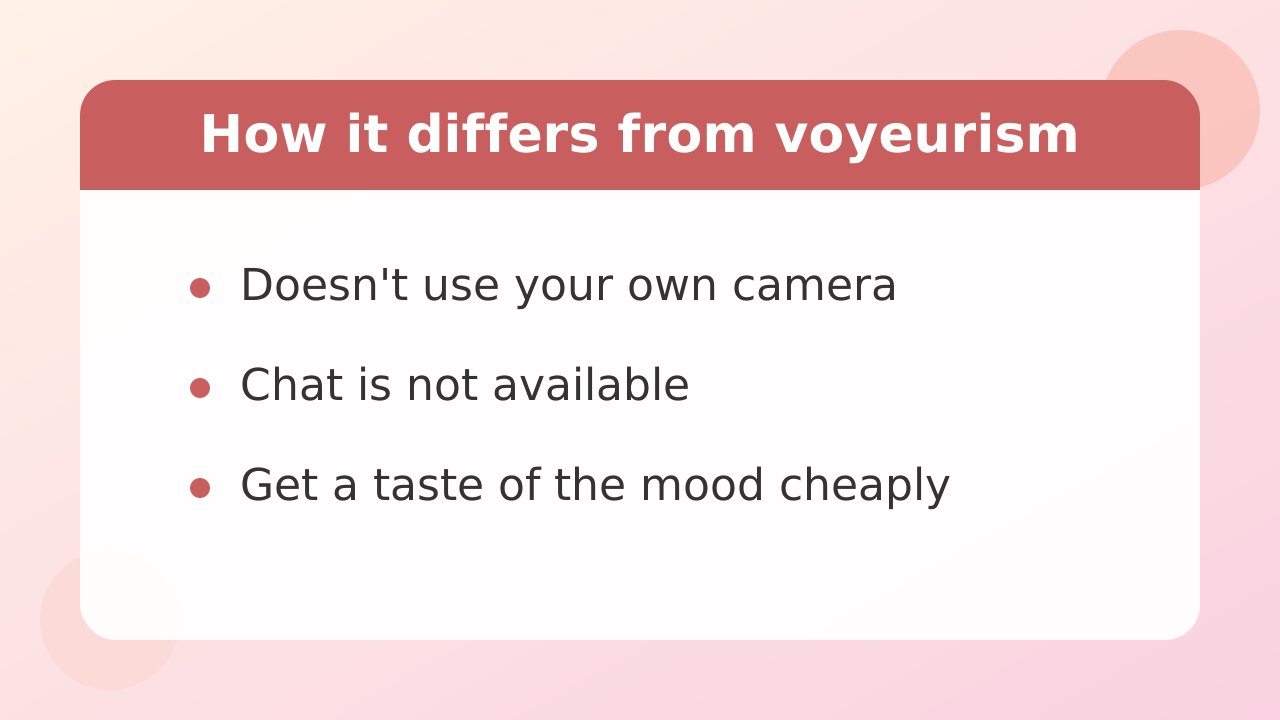
If you want to spend less, spy mode is the better fit. You're just watching someone else's private show, charges are per minute, and your camera is never used at all. In exchange, you can't talk to the performer.
| Item | Private (mutual camera possible) | Spy |
|---|---|---|
| What it is | One-on-one time with the performer | Watching someone else's private show |
| Mutual camera | Available | Not available |
| Chat | Yes | No |
| Pricing | Per minute, set by performer | Per minute, set by performer |
If you want to talk and show yourself, go private. If you just want to enjoy the atmosphere, go spy. You'll often see claims that spy mode has a free trial period, but the number of seconds varies by source and no official confirmation could be found. Check the actual display on the site.
Stripchat | Four things you must never show on camera
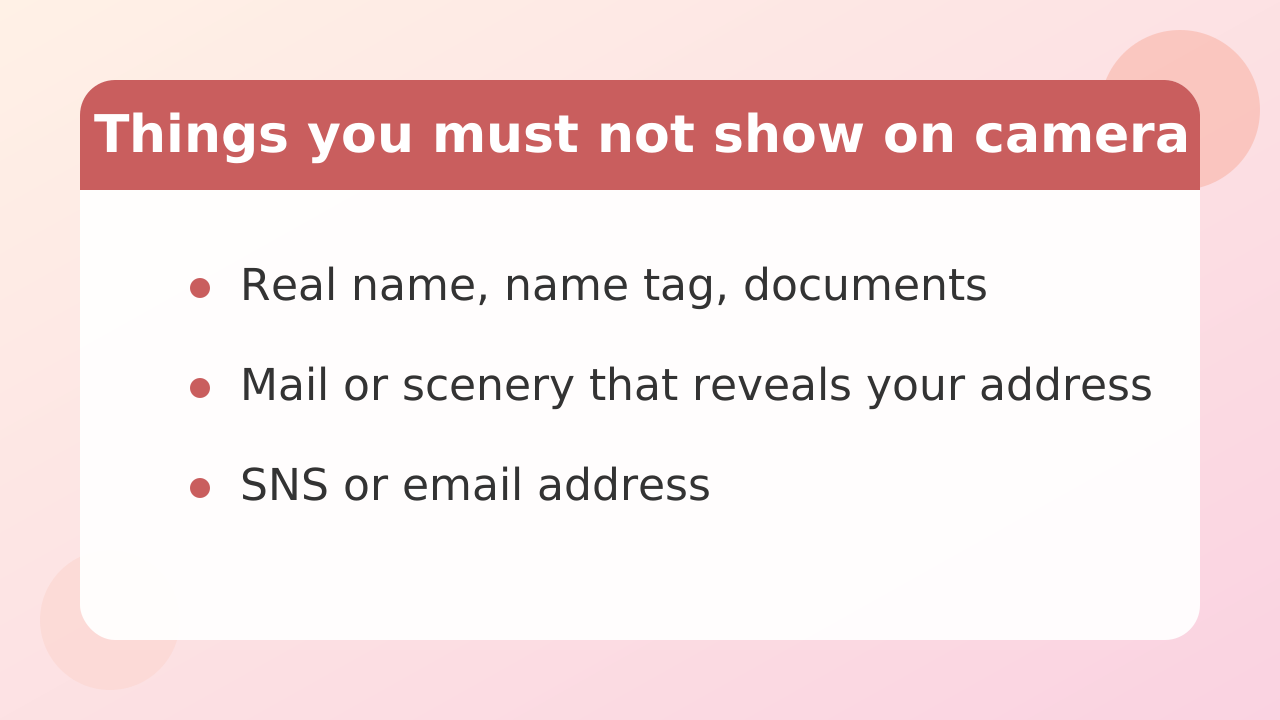
Mutual camera sends your room directly to the other person. Never do any of the following four things, even on impulse.
- State your real name, or show it on a name tag or document
- Show anything that reveals your address (mail, the view outside your window, a nameplate, etc.)
- Show your face and personal information at the same time
- Give out social media accounts or email addresses
Your background matters just as much. Room features and photos on display become clues that can identify you when combined with other fragments. Before you start, review once more what falls within your camera's field of view.
You may read claims that video is relayed in a way that doesn't directly expose your connection to the performer. But this too could not be confirmed officially. Don't take it as fact — prioritize reducing the information you show.
Stripchat | What to do after you're done (revoking camera permission)
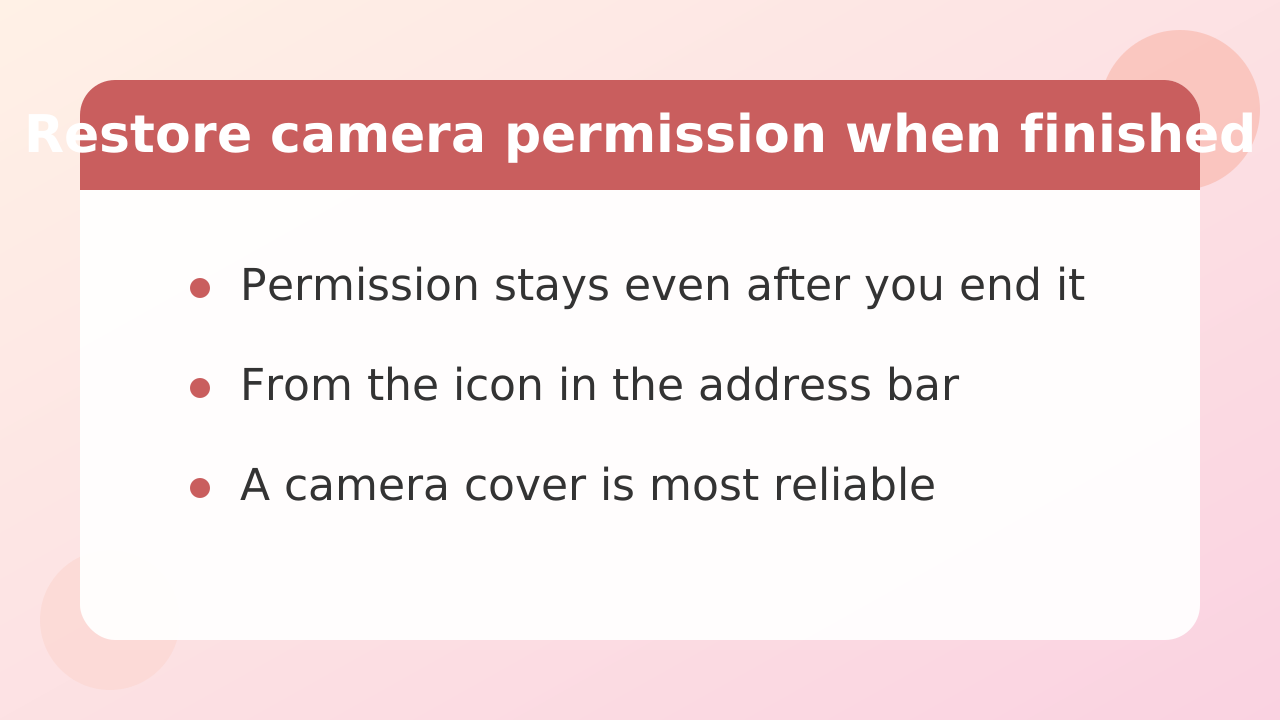
When you're finished, it's a good idea to revert your browser's camera permission. Video stops when the private show ends, but the permission itself remains. This helps prevent your camera from activating in another context later.
On Chrome-based browsers, you can change the site's permission from the camera icon near the address bar. You can also go through Settings → "Privacy and security" → "Site settings" → "Camera" and remove the site from the allowed list.
Physically, a camera cover is the most reliable option. Even if you forget to change a software setting, no video gets through.
Stripchat | What to do when your camera isn't detected (Chrome / Edge / mobile)
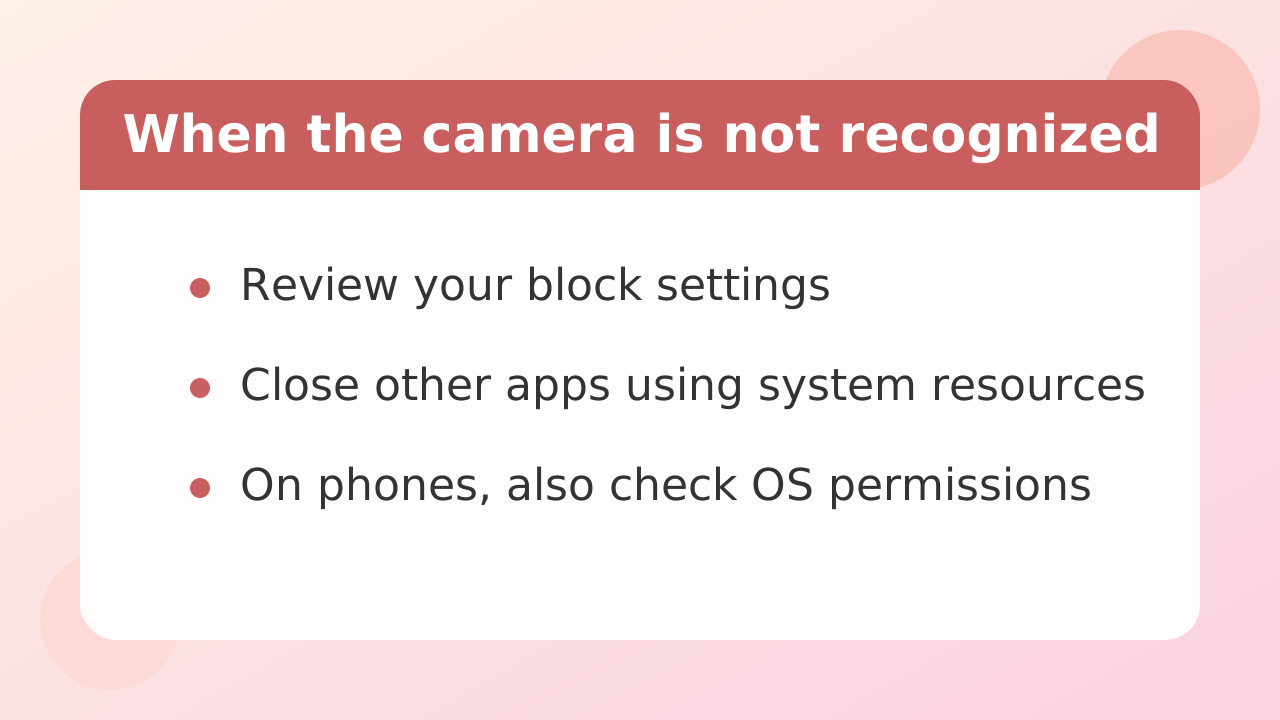
The first thing to suspect is that your browser is blocking the camera. In Chrome or Edge, click the camera icon in the address bar and set it back to "Allow" for this site. If the icon doesn't appear, go to Settings → "Privacy and security" → "Site settings" → "Camera" and check whether the site has landed on the blocked list.
Next, check whether another app is occupying the camera. If a video conferencing app or recording software is still running, the browser can't see your camera. Close it and reload the page.
On mobile, also check the OS-level app permissions. If your browser app isn't allowed to use the camera, nothing you press on the site will produce video. If it still doesn't work, updating your browser to the latest version and restarting your device can sometimes help.
Stripchat | Equipment and connection needed (watch your upload speed)
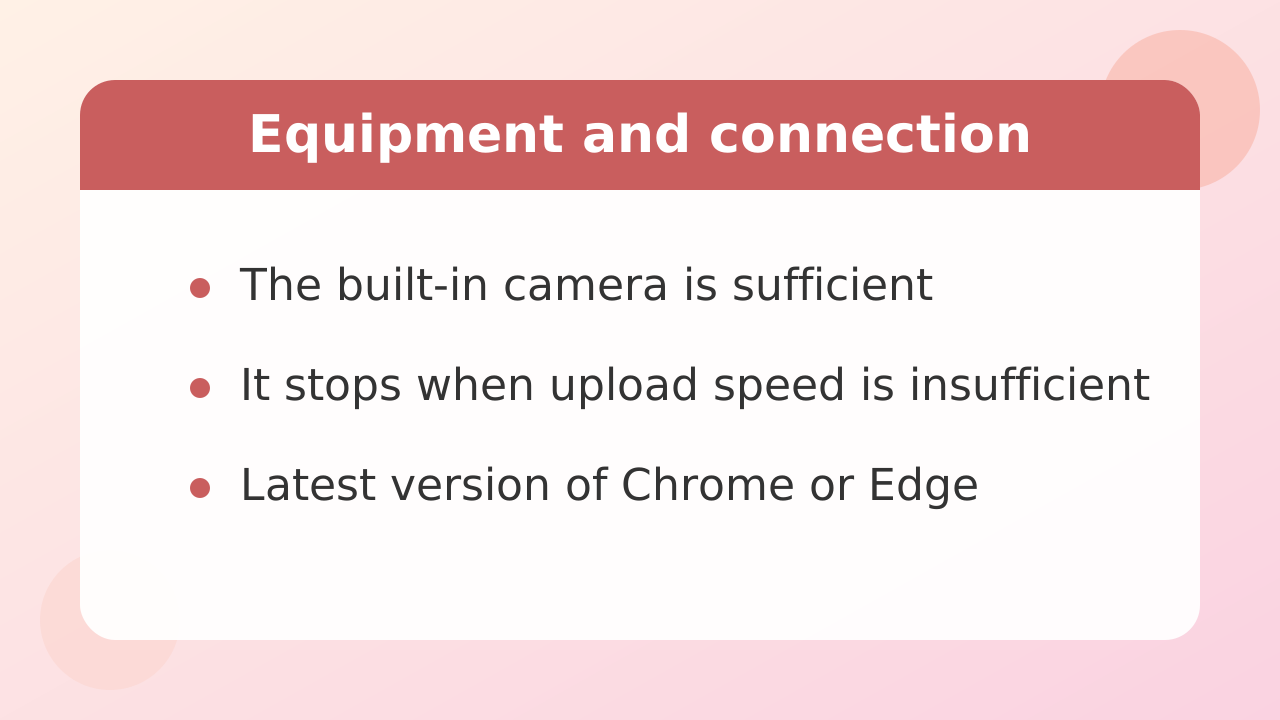
No special equipment is required. Your laptop's built-in camera or your phone's front camera is enough. If you want two-way audio as well, earphones with a microphone make things more stable.
What's easy to overlook is your connection's upload speed. Watching video uses download, but mutual camera sends your video, so it uses upload. If your upload is narrow, only your video will stutter or freeze.
We could not confirm an official requirement for exactly how many Mbps you need. As a rough guide, a stable upload of a few Mbps or more is reassuring for sending video — treat it as just that. If you're worried, trying audio and text only first is the practical approach.
For browsers, the latest version of Chrome or Edge is a safe choice. Whether Safari has restrictions could not be confirmed, so if things don't work, try a different browser.
Stripchat | Frequently asked questions
Q. Is mutual camera available with every performer?
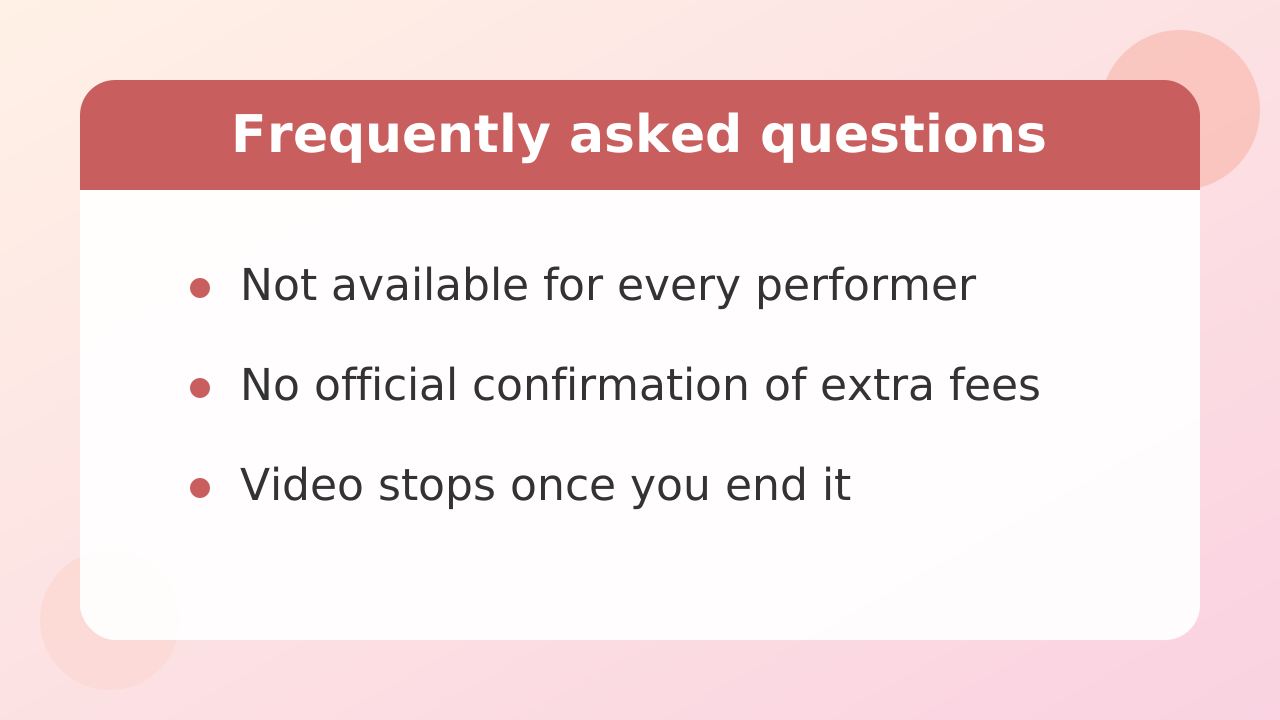
No. Availability differs from performer to performer. In rooms that don't support it, the button itself doesn't appear.
Q. Is there a risk my video is being recorded?
It's impossible to say the technical possibility is zero. That's exactly why the most effective measure is to avoid showing anything that can identify you.
Q. Does mutual camera cost extra?
We could not confirm the official specification. It's generally said to be included in the private show rate, but since we can't state that as fact, judge based on the display before starting and by asking the performer.
Q. Can I use it from my phone?
It's commonly described as usable from a mobile browser. However, it depends on your device and browser permission settings, so check your settings if it doesn't work.
Q. What if I want to stop partway through?
Ending the private show stops the video. Revoking your browser's camera permission as well gives extra peace of mind.
Q. How do I avoid going over budget?
Charges keep decreasing per minute. Decide your limit before entering, and always check the per-minute amount shown when you start. Coins are not refunded.