Stripchat | Conclusion: there are only 3 things to do (connect the toy / link it to the site / set reactions for each amount)
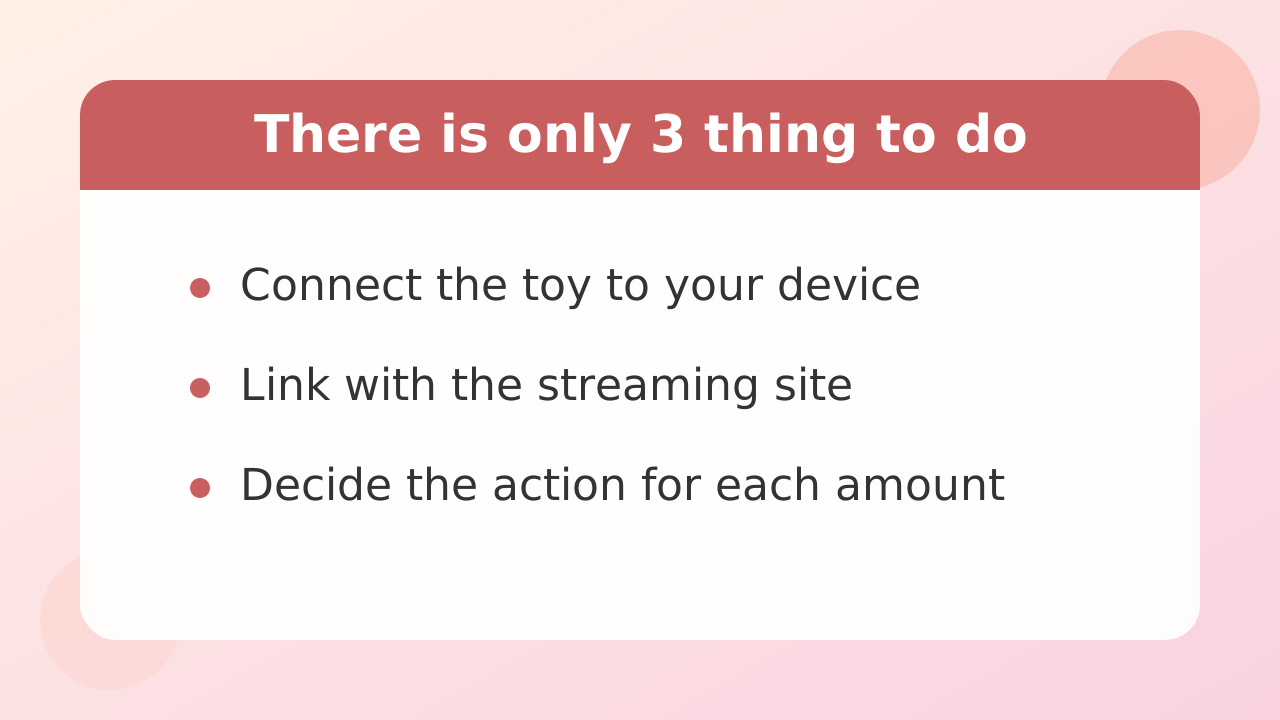
The steps needed to link Lovense toy to tips in live chat shows are simply to connect the toy to your device, link it with the streaming site, and decide how it should move at each price level - just 3 steps in total.
The setup work itself does not require any difficult programming; you can proceed simply by following the on-screen instructions and selecting numbers and actions. If you grasp the overall flow first, you won't get lost along the way.
The first thing to do is the preparation of making your computer or smartphone recognize the toy via Bluetooth. After making the toy able to communicate, connect it to the broadcast screen or the dedicated extension for linking.
Finally, enter the rule on screen for "how strongly and for how many seconds to move it" according to the tip amount the customer sends, then save, and preparation is complete. First, keep these 3 major chunks in mind and proceed in order.
Stripchat | 2 ways to connect a toy to a PC/smartphone, and which to choose
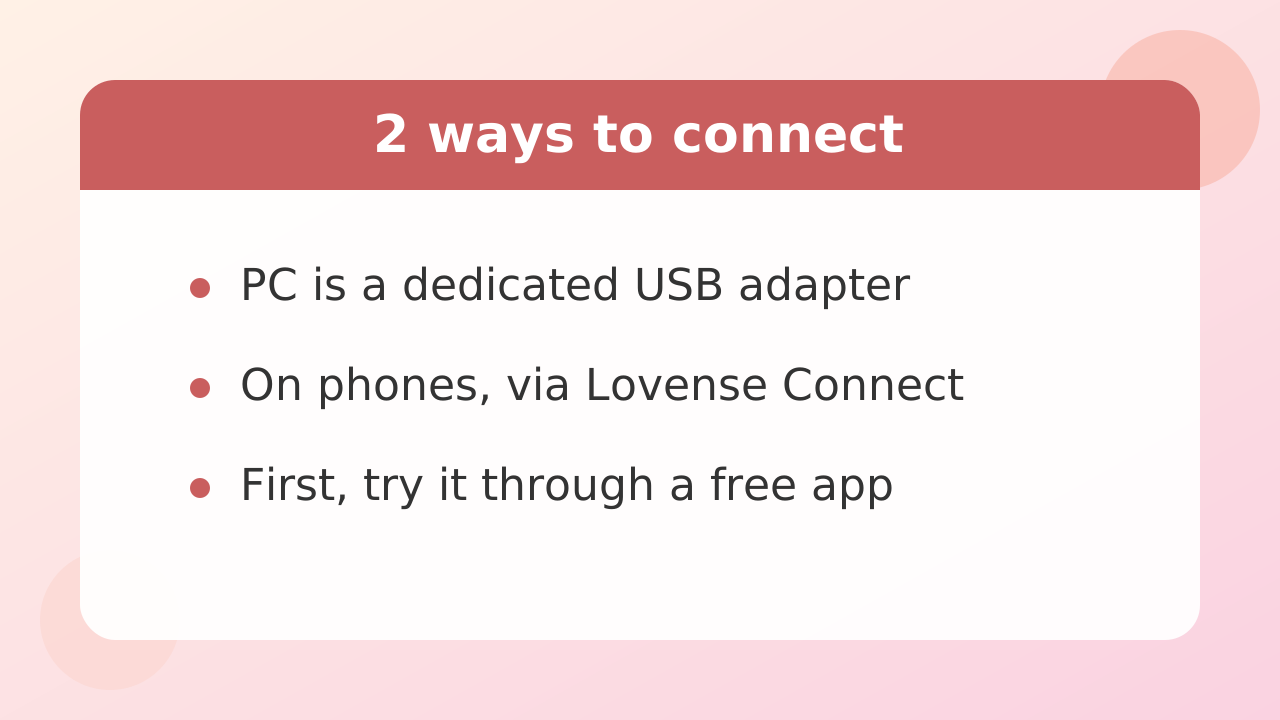
There are 2 ways to connect the toy to your device: use a dedicated USB adapter for a computer or route it through the smartphone app “Lovense Connect.” Choose the option that suits your setup.
The method using a dedicated USB adapter involves plugging the adapter into the PC's USB port and having the PC detect the toy directly. It is suited to people who want to keep their streaming equipment on just 1 PCs without worrying about smartphone battery drain.
Another option is to use a smartphone app: install the app on your usual smartphone, connect the smartphone and toy using Bluetooth, and then sync it with the computer screen. The biggest advantage is that you can get started right away without preparing an additional adapter.
If you are unsure which to choose, it is best to first try the smartphone app, which costs no extra fee. Considering your phone's battery level and connection stability, and considering a dedicated adapter only if needed, will help you avoid failure.
Also, because the adapter's current sales status and the latest supported OS version may be updated from time to time, it is reassuring to check the operating requirements on the official information page before purchasing.
Stripchat | Link with the streaming site (log in -> choose connection method -> check toy display)
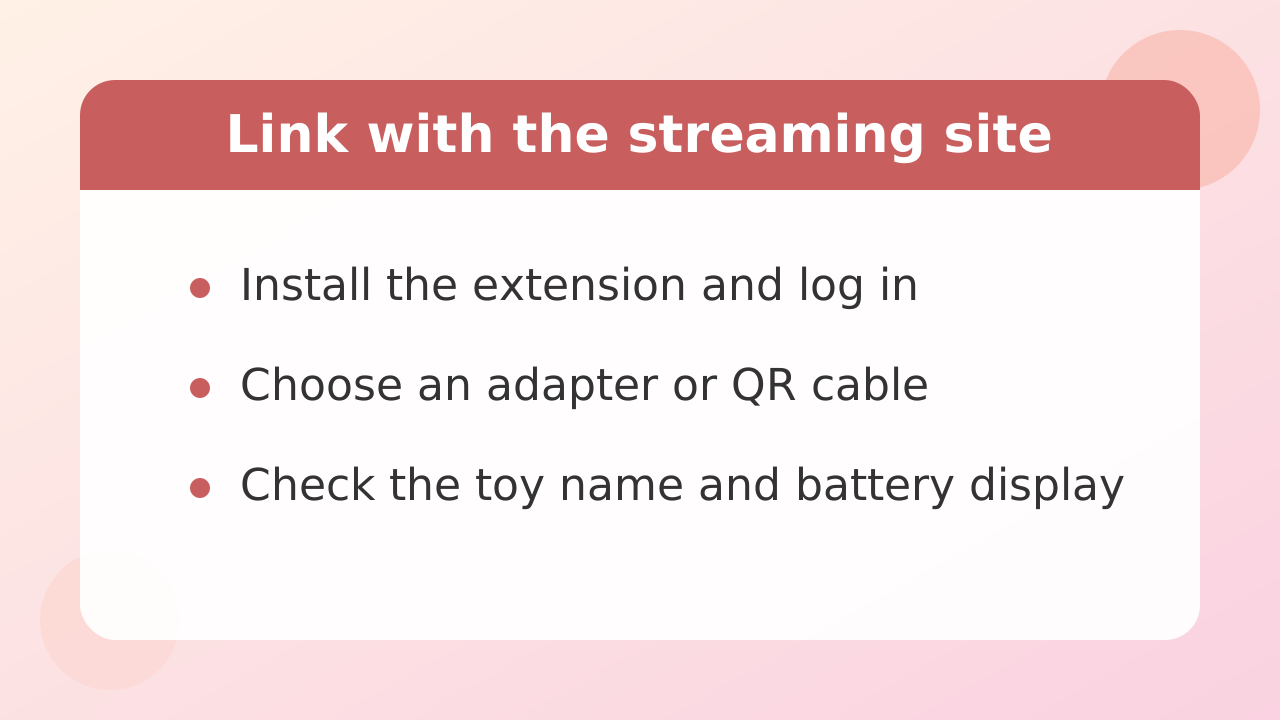
Once the device and toy are connected, link the streaming site and the Lovense system, and make the toy recognized on the management screen.
The general connection flow begins by adding the official browser extension (such as Cam, Extension) and logging in with your own account. Opening the extension's management panel displays a connection route selection screen.
If you are using a USB adapter, select the adapter connection. If you are using a smartphone app, scan the QR code shown on the screen with the app on your phone. This allows the browser extension and toy to communicate.
When pairing succeeds, the name of your toy appears on the extension screen, and the signal icon and battery indicator light up. The first thing to check is whether the toy's name is displayed correctly in this list.
On Stripchat and other streaming sites, the broadcast management screen or chat-room settings may include options for toy integration. Follow the latest broadcast guidelines for the platform you use and proceed according to the extension's instructions.
Stripchat | Decide reactions for each amount - how to think about settings and ready-to-use examples.
The basic idea for how a toy reacts to tips is to gradually increase duration and intensity, creating a "staircase" from small amounts to large amounts.
In live chat, a wide range of amounts fly around, from casual greeting tips of 1 coin or just a few coins to larger tips of dozens of coins or more. Even a cheap tip should make the toy react briefly and slightly, and the higher the amount, the more intensely and longer it should move, creating an atmosphere that makes viewers more likely to send the next tip.
On the settings screen, you specify the type of toy to make respond, the tip amount range it responds to, the duration it operates (in seconds), and the intensity of vibration, rotation, etc. by level. If you have multiple toys, you can also set combinations such as only one for small tips and both for larger tips.
For first-time performers, we have compiled basic settings that you can enter and use as they are. Adjust them to suit the value of coins and your streaming style.
| Level | Tip amount (coins) | Action time (seconds) | Strength (vibration, rotation, etc.) | Target to move |
|---|---|---|---|---|
| Level 1 | 1 to 9 | 2 seconds | Weak (Low) | Main toy |
| Level 2 | 10 to 29 | 4 seconds | Medium | Main toy |
| Level 3 | 30 to 59 | 7 seconds | Strong (High) | Main toy |
| Level 4 | 60 to 99 | 12 seconds | Strongest (Ultra) | All toys |
| Level 5 | 100 to 999 | 20 seconds | Strongest (Ultra) | All toys |
At first, do not divide it too finely; starting with about 4 to 5 levels as above is easier to manage and recommended. Once you get used to it, fine-tune the seconds and intensity to match the room's atmosphere and the customer's preferences.
Stripchat | The most common failure: gaps in the price ranges
The most common problem when setting up toy integration is a configuration error where numbers are missing from the amount range, causing the toy not to respond at all to tips of certain amounts.
For example, if you set level 1 to "1-10" and level 2 to "15-30," when a tip worth 11, 12, 13, or 14 coins arrives in between those ranges, the system cannot determine which command to execute and ignores it.
From the customer's side, this becomes "I sent a tip, but the toy doesn't move," which can cause trouble or dissatisfaction. When setting tip ranges, be sure to make the "next number" after the previous level's end value the start value of the next level.
This is important: make consecutive sequences with no gaps between the 1 numbers, such as "1-10", then "11-25", then "25", then "26-50". For the upper limit too, set a larger number so it covers the maximum amount you have in mind.
Stripchat | Everything becomes invalid if you forget to save
No matter how perfectly you enter the amount and duration, none of the settings will appear on the broadcast screen unless you correctly click the Save button on the screen to complete the process.
In Lovense's settings panel, the Save button may be disabled unless every input field, especially white fields such as the upper limit for the tip range, is filled in correctly. You cannot save if even 1 field is left blank.
After changing settings, be sure to click the confirmation button such as "Save" or "Save settings," located at the bottom or top of the screen. You need to visually confirm that the button was pressed correctly and that a save-complete notification appeared on the screen.
If you close the browser tab as is or return to the stream screen without pressing the save button, it will revert to the previous initial state. If you change even 1 number, make it a rule to "press the save button first."
Stripchat | Send yourself a test tip to check that it works.
Once all settings are saved, before starting the actual stream, be sure to use the test tip-sending feature to simulate whether the toy moves as intended.
Many stream management screens and integration tools have a "test send" or "simulator" feature that lets you reproduce what happens when a tip arrives without making a payment. Use this to test the numbers for each level you have set.
First send a test signal equivalent to the minimum 1 coin and check whether the toy vibrates for the set seconds and strength. Next, test a mid-range amount and a high amount, and check whether it stops at the specified time and whether the strength switches.
If you discover after the show starts that the toy is not working, you will have to reopen the settings screen in front of the camera, interrupting your conversation with viewers. Use the 1 minute before pressing the stream-start button to complete a function test.
Stripchat | Troubleshooting when it does not work (toy / connection / extensions / site issues)
If the toy does not move during testing or a live show, calmly identify the cause by checking these 4 areas separately: the toy itself, Bluetooth connection, extensions, and site settings.
Step 1: Check the toy device
First, check whether the toy itself is turned on and whether it has run out of charge. Try pressing the toy's physical button and see whether the light turns on and it vibrates on its own. When the battery is low, Bluetooth communication tends to drop, so charging it sufficiently beforehand is essential.
Step 2: Check the connection with the device
Open the Bluetooth management screen on the smartphone app or computer and check whether the toy is "Connected." If you're using a smartphone, check whether the smartphone is connected to the same Wi-Fi network as the computer and whether the app hasn't been closed in the background.
Step 3: Check browser extensions
Open the Lovense extension icon in your browser toolbar and check whether the toy is in the green connected state. If it is disconnected, log out of the extension once and log back in, or run a toy rescan on the extension screen.
Step 4: Check integration with the streaming site
Check whether the toy integration icon is enabled in the site's chat screen and whether there are any gaps in the tip setting range. If you have just changed settings, reloading the broadcast management screen once often refreshes the information and makes it start working properly.
Stripchat | FAQ
Q. How many performers on Stripchat use toys?
A. Looking at Japanese performers overall, those who connect a toy during their shows are still a minority at about 6%. Because few performers have adopted them, simply offering a tip-controlled toy can become a major strength and distinguishing trait for a room.
Q. Is it okay to turn off my smartphone screen during a show?
A. If you are connecting via a smartphone app, communication may be interrupted when the phone screen locks automatically or the app goes to sleep. During a show, it is safer to keep the phone connected to a charger, turn off automatic screen timeout, and leave the app running.
Q. Can I link multiple toys at the same time?
A. Yes, it is possible. You can have the system recognize multiple toys on the management screen and even set advanced rules, such as "at level 1, vibrate only one, and at level 4 or higher, vibrate both at the same time."
Q. I received a tip, but the toy stops midway. What is causing this?
A. The toy's battery may be low, or the signal between it and the device may be blocked. Also, check the rules settings screen for the extension to see how the "queue (waiting list)" is configured when another tip arrives while the previous tip's action is still running.
Q. What should I do if the on-screen instructions are mostly in English and difficult to understand?
A. Using the browser's built-in page translation feature (translate to Japanese) makes it easier to understand what the settings mean. However, when entering numbers or amounts, to prevent errors, we recommend temporarily turning translation off and entering them accurately in half-width alphanumeric characters.